My account
Click the user icon at the top right to open the menu:
- Language: changes the interface language.
- Profile: personal settings, your sessions and your sign-in history.
- Worker Notification Setting Management: which on-screen notifications you receive.
- About: version information and update check.
- Logout.

To change the interface language, open the list at the top of the menu and choose English or Türkçe.

Profile
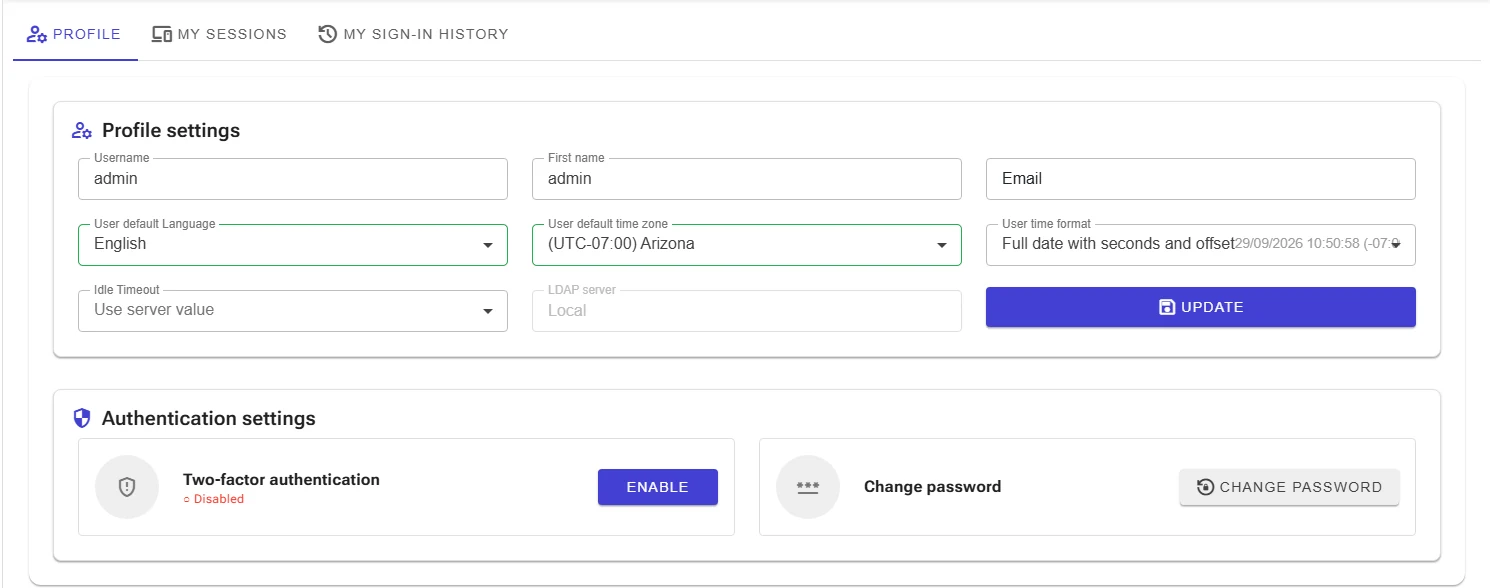
On the Profile tab, change your first name, email address, default language, time zone, date/time format (User time format) and idle timeout, then click Update. When Idle Timeout is set to Use server value, the period from Server settings applies.
Under Authentication settings:
- Turn on Two-factor authentication with Enable; you can change it later.
- Change your password with Change password. LDAP users change their password in the directory.
My sessions
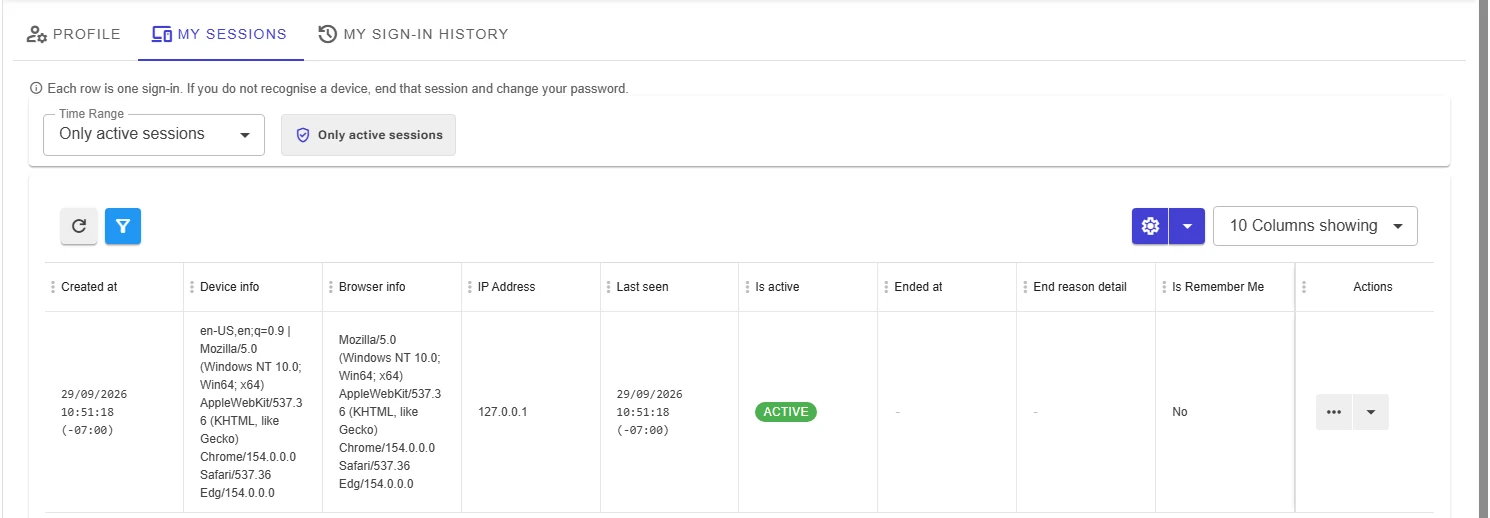
Lists the sessions opened with your account; each row is one sign-in. It shows the device and browser, IP address, last-seen time and whether the session is still open. Use Time range to list past sessions as well.
End that session and change your password.
My sign-in history
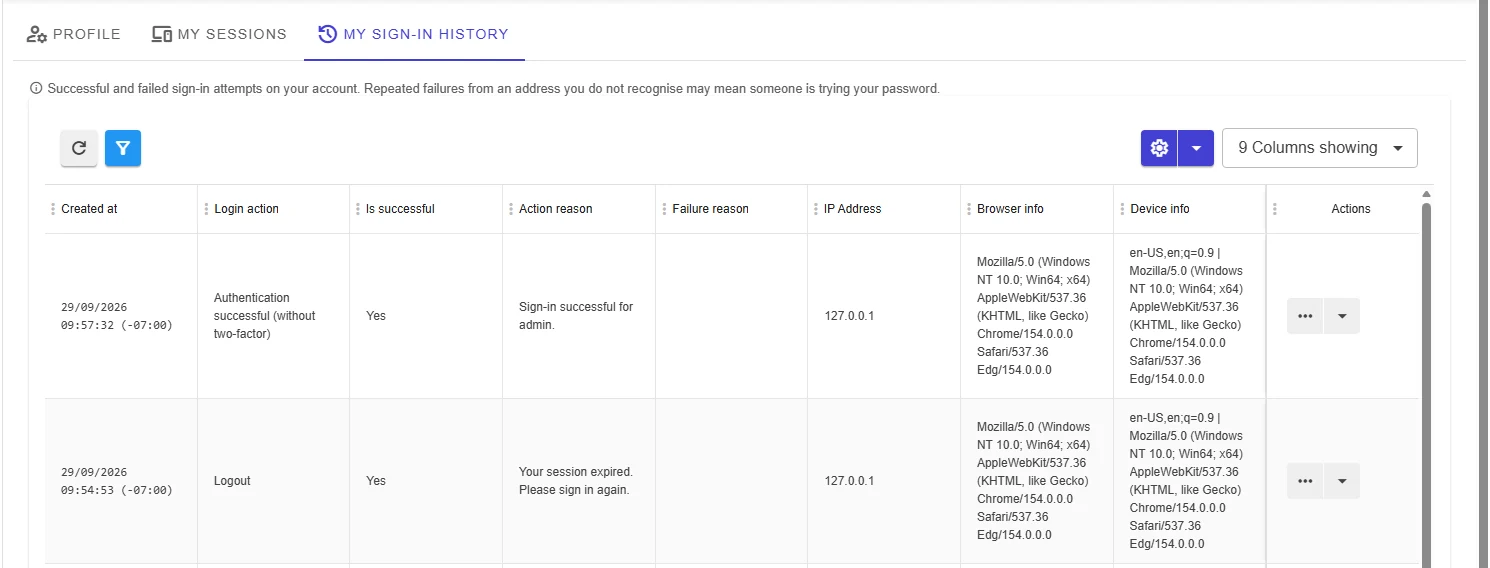
Shows successful and failed sign-in attempts on your account. Repeated failures from an unknown address may mean someone is trying your password.
Notification preferences
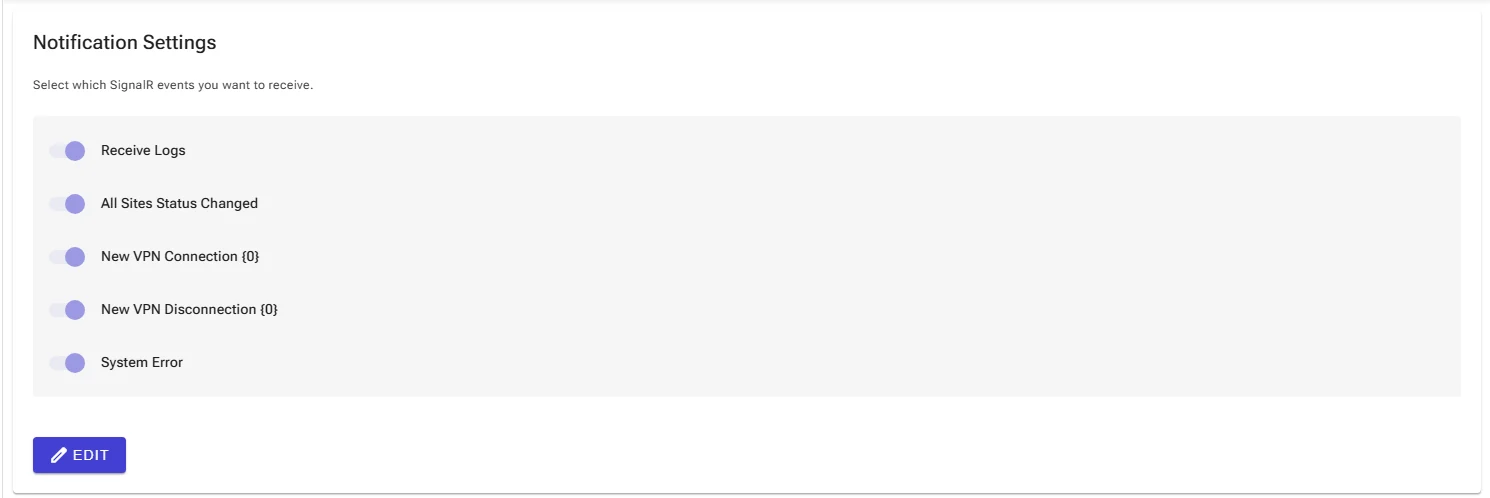
On the Worker Notification Setting Management screen, choose which live notifications you want to see in the interface: logs, site status changes, new VPN connections, VPN disconnections and system errors. Click Edit and turn off the ones you do not want. This affects on-screen notifications only (see Notifications); email notifications are managed in Alarm management.
About and updates
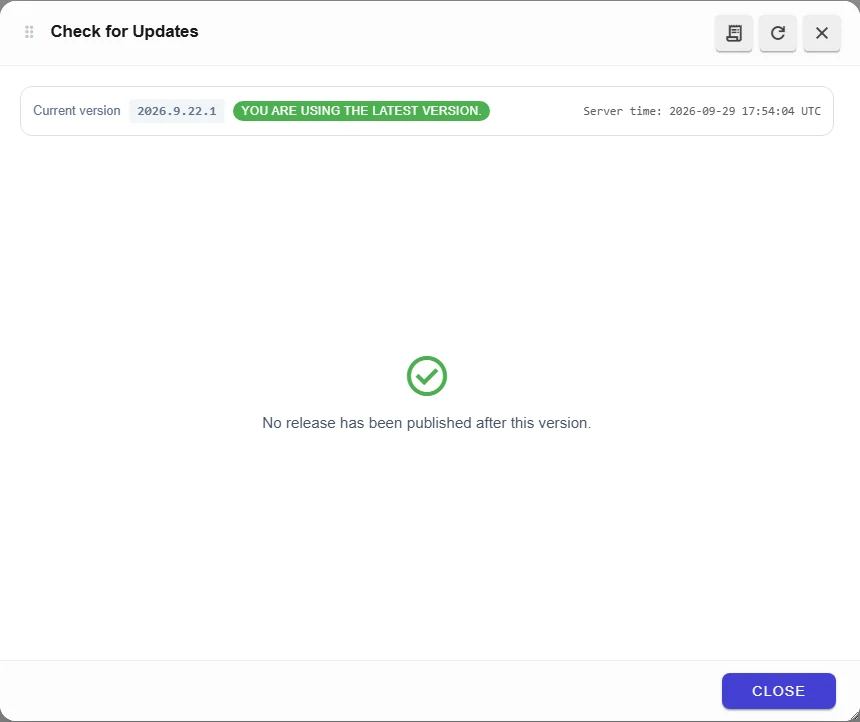
The About section shows the software version, and Check for Updates checks whether a new version is available.

The Check for Updates window shows your current version and whether it is the latest. When a newer version is published, its release notes are listed here.
When you sign in, the system checks for updates automatically and lets you know if a new version is found. To install a new version, see Updating.