Sites
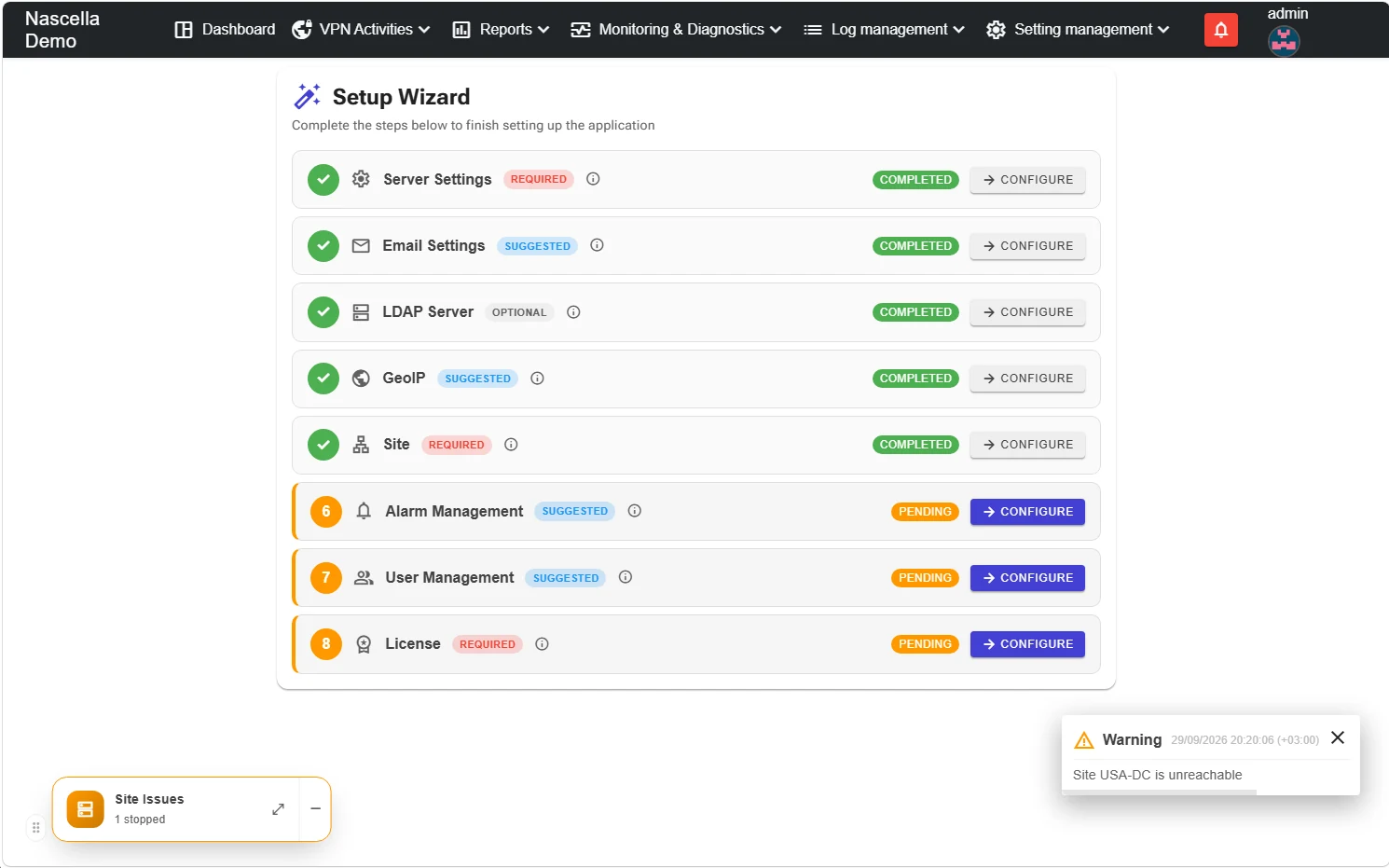
This is step 5 of the setup wizard (required). Each location you collect data from is added as a site. A site contains a single firewall or a high-availability (HA) pair. Sites are managed from the Setting management menu; click the + button above the list to add one.
Before you start, create the API account described in Firewall preparation.
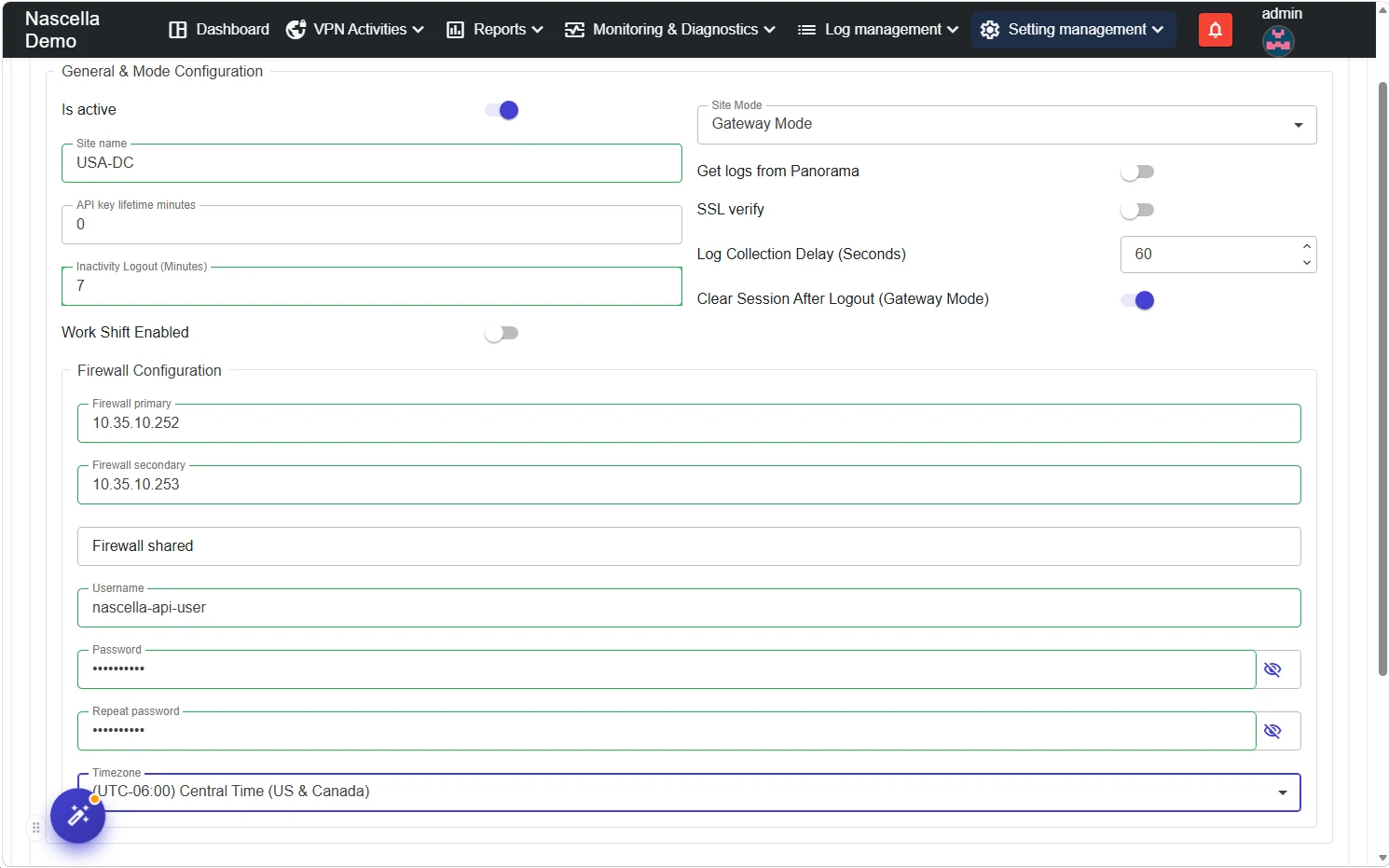
General and mode configuration
| Setting | Description |
|---|---|
| Is active | Turns data collection on for the site. |
| Site name | The name shown in reports, for example Izmir-DC. |
| Site Mode | Where and how data is collected. See below. |
| Get logs from Panorama | In gateway mode, connections are read from the device; turn this on to read traffic logs from Panorama. |
| API key lifetime minutes | If an API Key Lifetime is set on the firewall, enter the same value; the key is renewed at this interval. 0 means no renewal. |
| SSL verify | Validates the certificate of the firewall's web interface. See the note below. |
| Log Collection Delay (Seconds) | How long to wait after a VPN session ends before collecting its traffic logs (default 60). Increase it where Panorama delivers logs with a delay. |
| Clear Session After Logout (Gateway Mode) | On by default; we recommend leaving it on. Details below. |
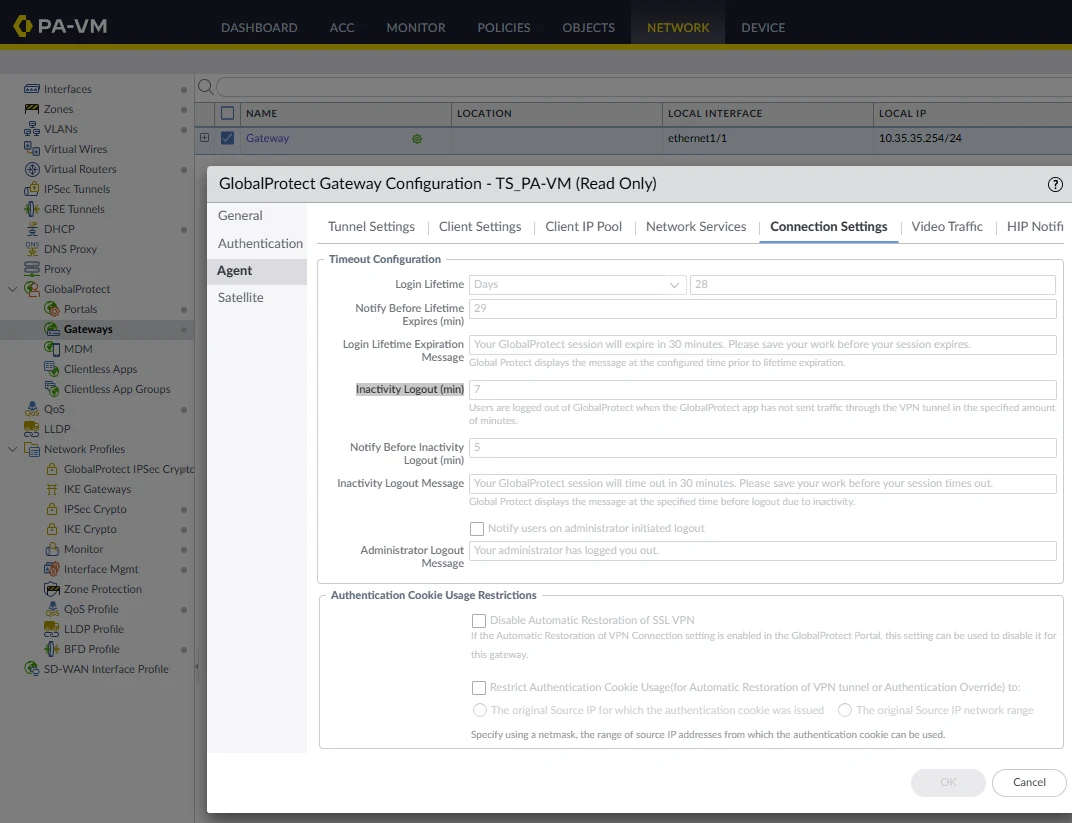
| Inactivity Logout (Minutes) | Must be the same as the GlobalProtect Inactivity Logout value on the firewall. Details below. |
| Work Shift Enabled | Turns on working-hours calculation for this site. See Shifts and holidays. |
Site mode
| Mode | When to use |
|---|---|
| Gateway Mode (default) | Enough for most deployments. Connection details are read directly from the firewall. |
| GlobalProtect Log Mode | Use only when needed; duration calculations have a larger margin of error in this mode. |
| Gateway Over Panorama Mode | For deployments with a central Panorama, to read data from the relevant devices managed by Panorama. Devices are listed by serial number, separated by commas. |
Inactivity logout
If a user's internet drops without disconnecting the VPN, the firewall closes the session when this timeout expires. VPN Reporter subtracts this timeout from the connection to calculate the real connected time, so the value must match the firewall.
To find the value on the firewall:
- Go to Network → GlobalProtect → Gateways and click the gateway name.
- On the Agent tab, open Connection Settings.
- Check Inactivity Logout (min). If it shows
7, enter7in the site settings as well.
Clear session after logout
Even after the VPN disconnects, sessions such as RDP can stay open on the firewall; an open session produces no traffic log, so that traffic does not appear in the logs. This option clears the open sessions of the VPN IP address after logout, so the sessions close, their logs are collected and reports stay consistent.
SSL verify
If you turn on SSL verification, the VPN Reporter server must trust the certificate of the firewall's web interface. Define the firewall by the FQDN in its certificate rather than by IP address. If the firewall uses a self-signed certificate, add it under Trusted Certificates at the bottom of the page.
Firewall configuration
| Field | Description |
|---|---|
| Firewall primary | Management address of the firewall, for example 10.35.10.252. |
| Firewall secondary | Address of the second device in an HA pair, for example 10.35.10.253. |
| Username / Password | The API account you created in Firewall preparation. The user name is case-sensitive. |
| Timezone | The firewall's time zone. |
Test and save
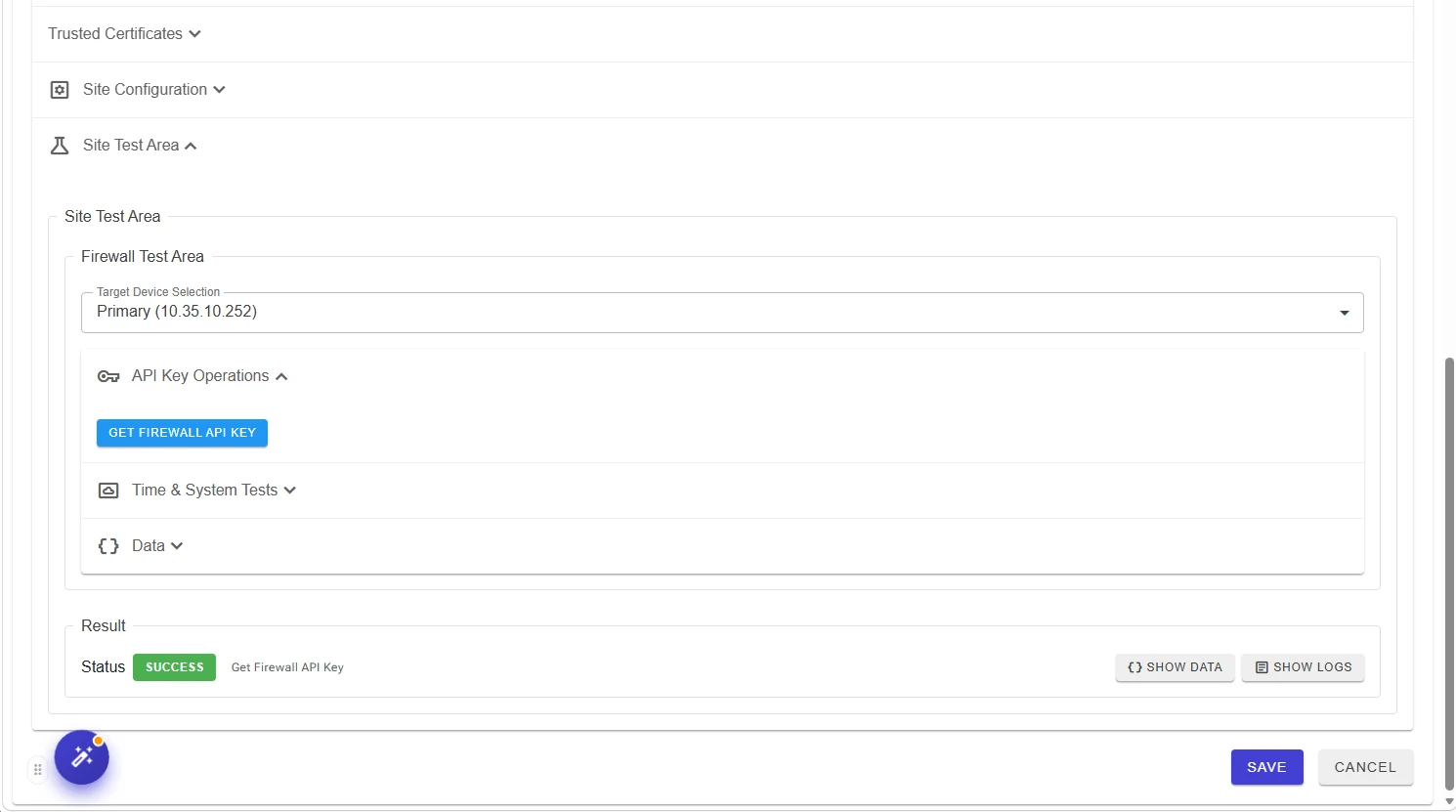
- Open the Site Test Area at the bottom of the page.
- In Target Device Selection, choose the device to test. In an HA pair, test each device separately.
- Click Get Firewall API Key; Result should show Status: Success.
- Use Time & System Tests to read the firewall's clock and time zone.
- If the tests succeed, click Save.
The test uses the values currently on the screen, even if they are not saved yet; try a change first, then save it.
The site is added to the list and a Site created notification appears.

Changing the settings of a running site
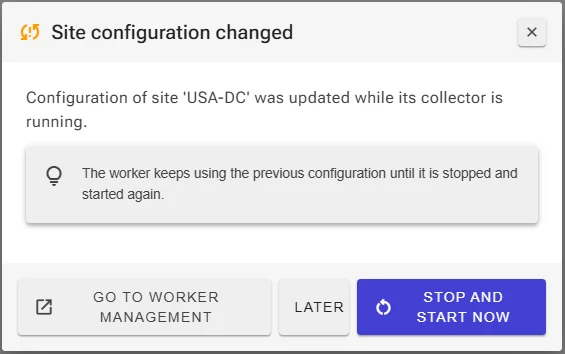
When you save the settings of a site that is collecting data, the Site configuration changed window opens. The collector keeps using the previous settings until it is stopped and started again.
| Button | What it does |
|---|---|
| Stop and Start Now | Restarts the collector immediately so the new settings take effect. Recommended. |
| Later | Closes the window; the new settings take effect the next time the collector restarts. |
| Go to Worker Management | Opens the Site Health & Status screen, where you can stop and start the site. |
The "site stopped" warning
After you add a site, a Site … is unreachable warning and a Site Issues — 1 stopped box at the bottom left appear. This is expected: the site does not run until a license is entered. After entering the license, start the site again.
Next step: Alarm management.