Shifts and holidays
VPN Reporter splits every VPN session into in-shift and out-of-shift minutes. To do this, you define a shift and assign it to a site (or to users). Calculations use the site's local time zone.
There are two ways to reach the shift screen:
- Setting management → Automation & Alerts → Work Shift Management
- The + button next to Default Work Shift, which appears when you turn on Work Shift Enabled in a site's settings

1. Create a shift
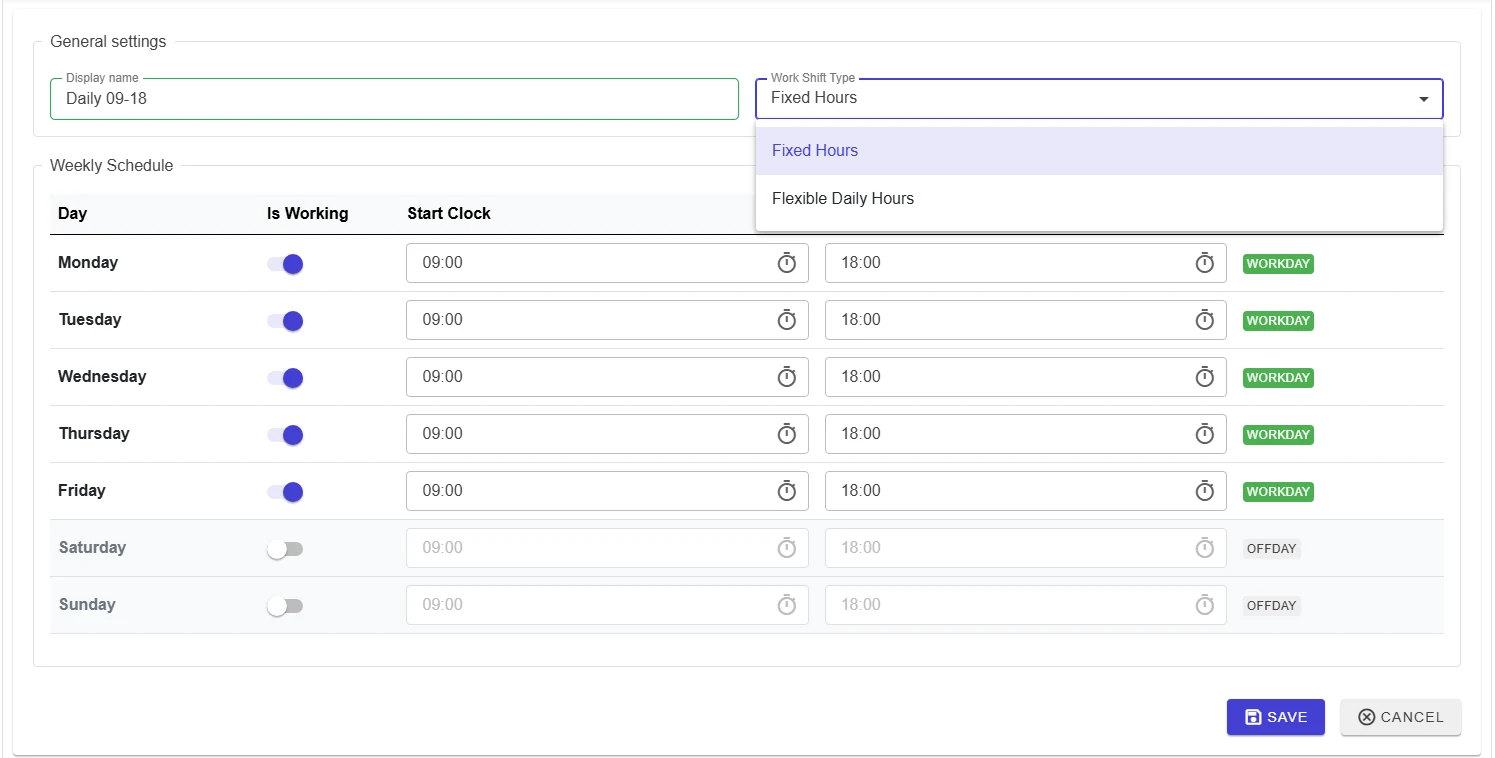
Click the + button at the top left of the list.
| Field | Description |
|---|---|
| Display name | The name shown in lists and reports, for example Daily 09-18. |
| Work Shift Type | Fixed Hours: a start and end time for each day (e.g. weekdays 09:00–18:00). Flexible Daily Hours: a number of hours per day at any time (e.g. 8 hours a day). |
| Weekly Schedule | An Is Working switch and the times for each day. Working days are marked Workday, others Offday. |
Click Save; the shift is added to the list and a Work shift created notification appears.

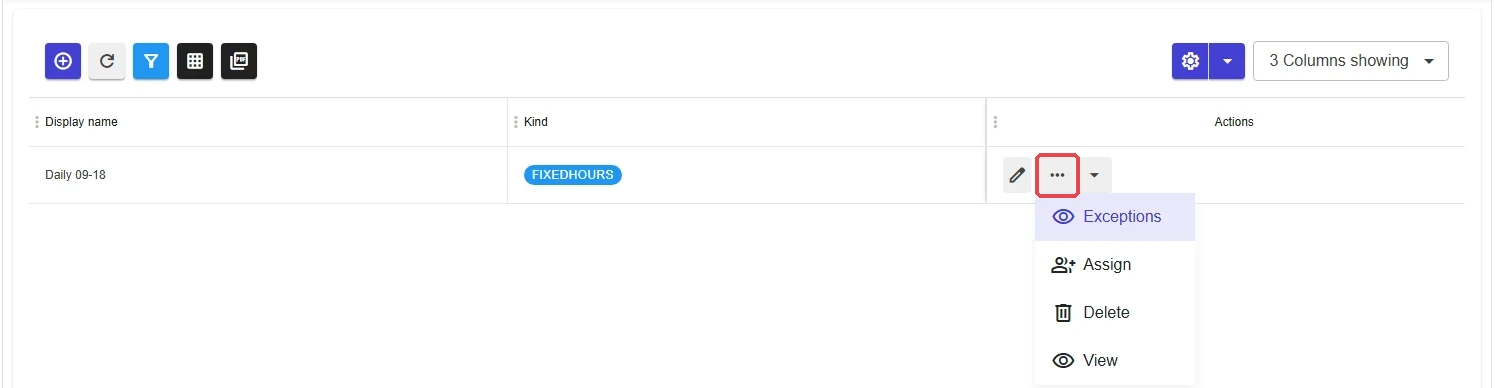
The ⋯ menu on the shift's row contains Exceptions, Assign, Delete and View.
2. Holidays and special days (exceptions)
Public holidays and special days are added as exceptions to the shift; these days are not counted as working days.
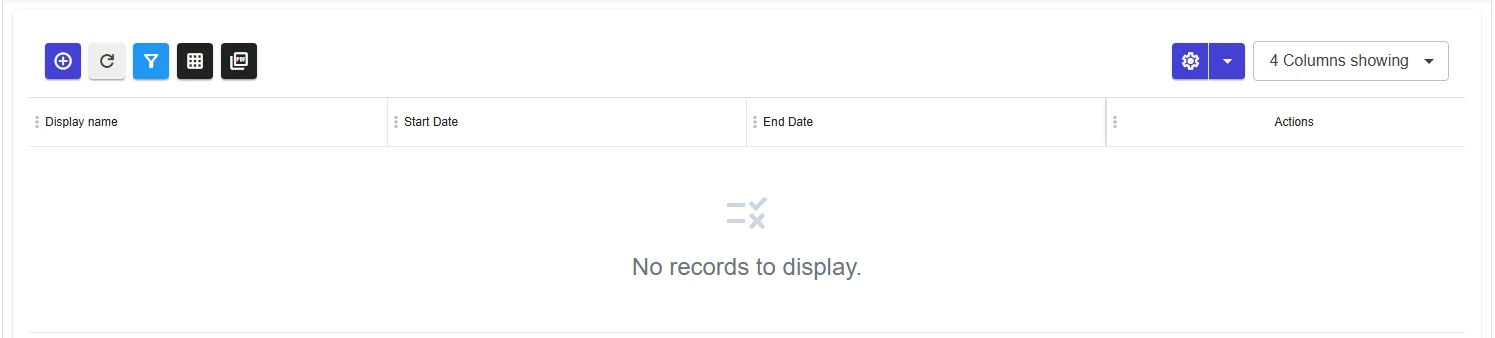
- Choose Exceptions from the shift's ⋯ menu.
- Click + to add an exception: Display name (e.g.
New Year), Start Date and End Date. For a one-day holiday both dates are the same; for a longer holiday enter the range. - Click Save.

3. Assign the shift to a site
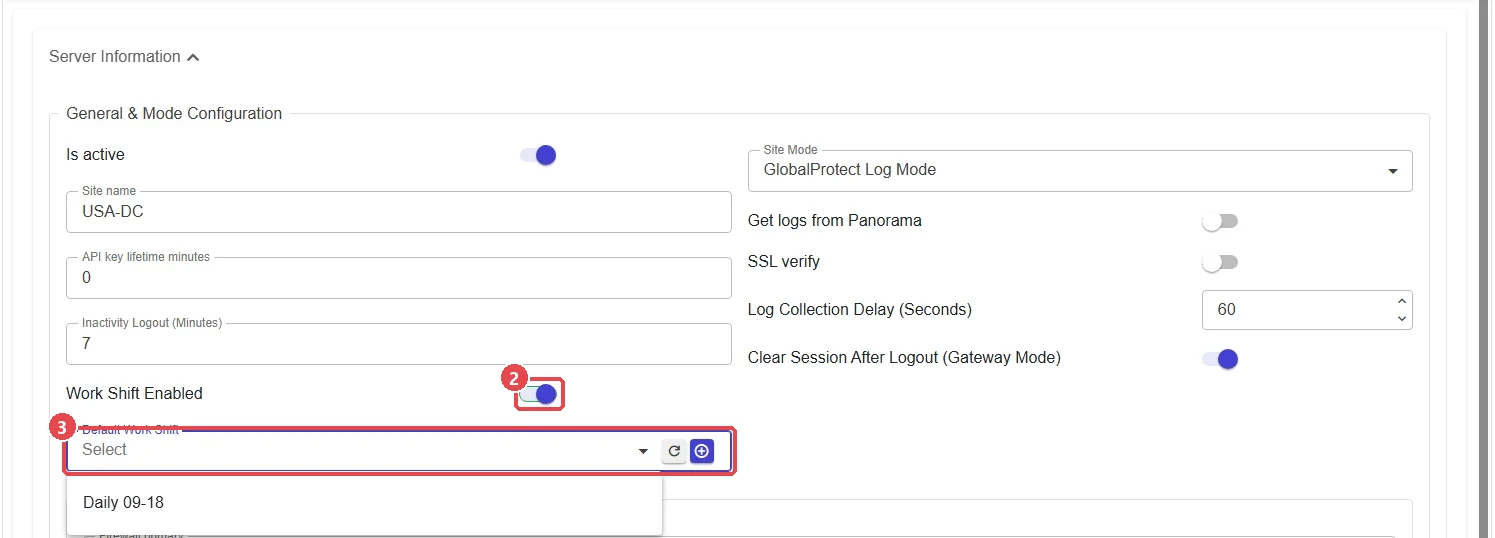
We recommend assigning the shift from the site's settings:
- Open the site for editing in Setting management.
- Turn on Work Shift Enabled.
- Select the shift in Default Work Shift. If it is not listed, refresh the list with the button next to it, or create a new shift with +.
- Click Save.
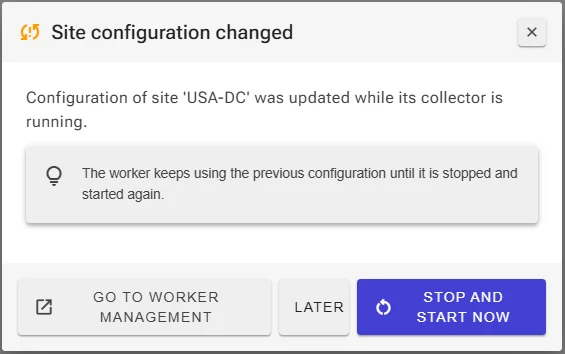
Because you changed the settings of a running site, the collector must be restarted for the change to take effect. In the window that opens, click Stop and Start Now. For details, see Changing the settings of a running site.
Assigning from the Assign menu
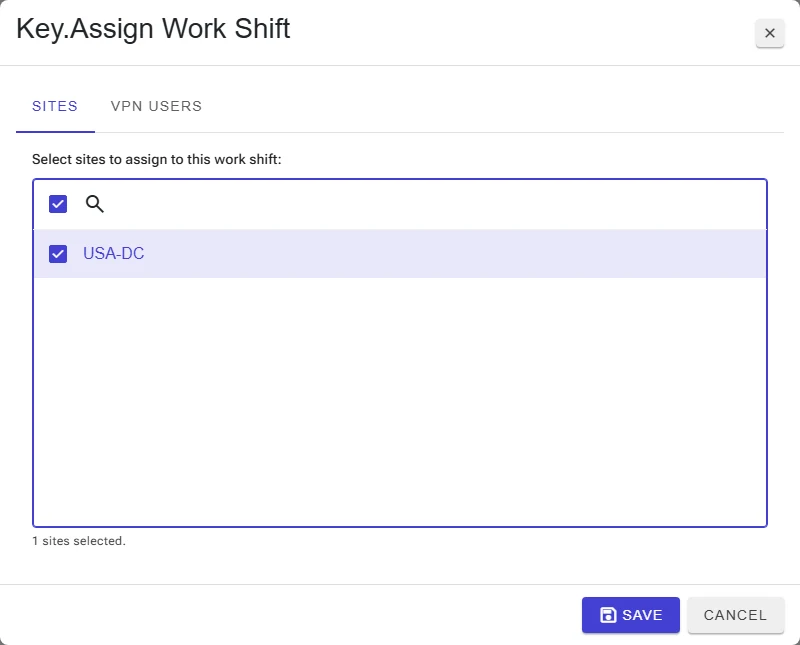
You can also assign the shift with Assign in the shift's ⋯ menu. In the window that opens, select sites on the Sites tab and, on the VPN Users tab, users who work differently from the site's default, then click Save.
Recalculating shift totals
Setting management → Automation & Alerts → Recalculate work shift totals rebuilds the stored daily shift totals from the raw connection timestamps. Use it after you change a shift or its exceptions and want past days to reflect the change, or when our support team asks you to. It is safe to run more than once; the result is the same every time.
- Only connections adjusted by the inactivity rule: processes only the connections that the inactivity logout rule shortened. This is much faster. Clear it for a full scan, which also rebuilds days inflated by overlapping sessions from more than one device.
- The screen shows the progress: processed, recalculated and skipped connections, day rows written and estimated time remaining.
- You can leave the page while the job runs, but restarting the service stops the job and clears the progress.