Server settings
This is the first, required step of the setup wizard. Later you can open it from the Setting management menu. Save your changes with the green save button at the top.
General settings
| Setting | Description |
|---|---|
| Company name | Filled in from the Configurator; you can change it here. |
| Server default language | Used when users have not chosen their own language. |
| Server default time zone | The time zone used by default. |
| Default LDAP server | The directory preselected on the sign-in screen. Local uses local accounts. |
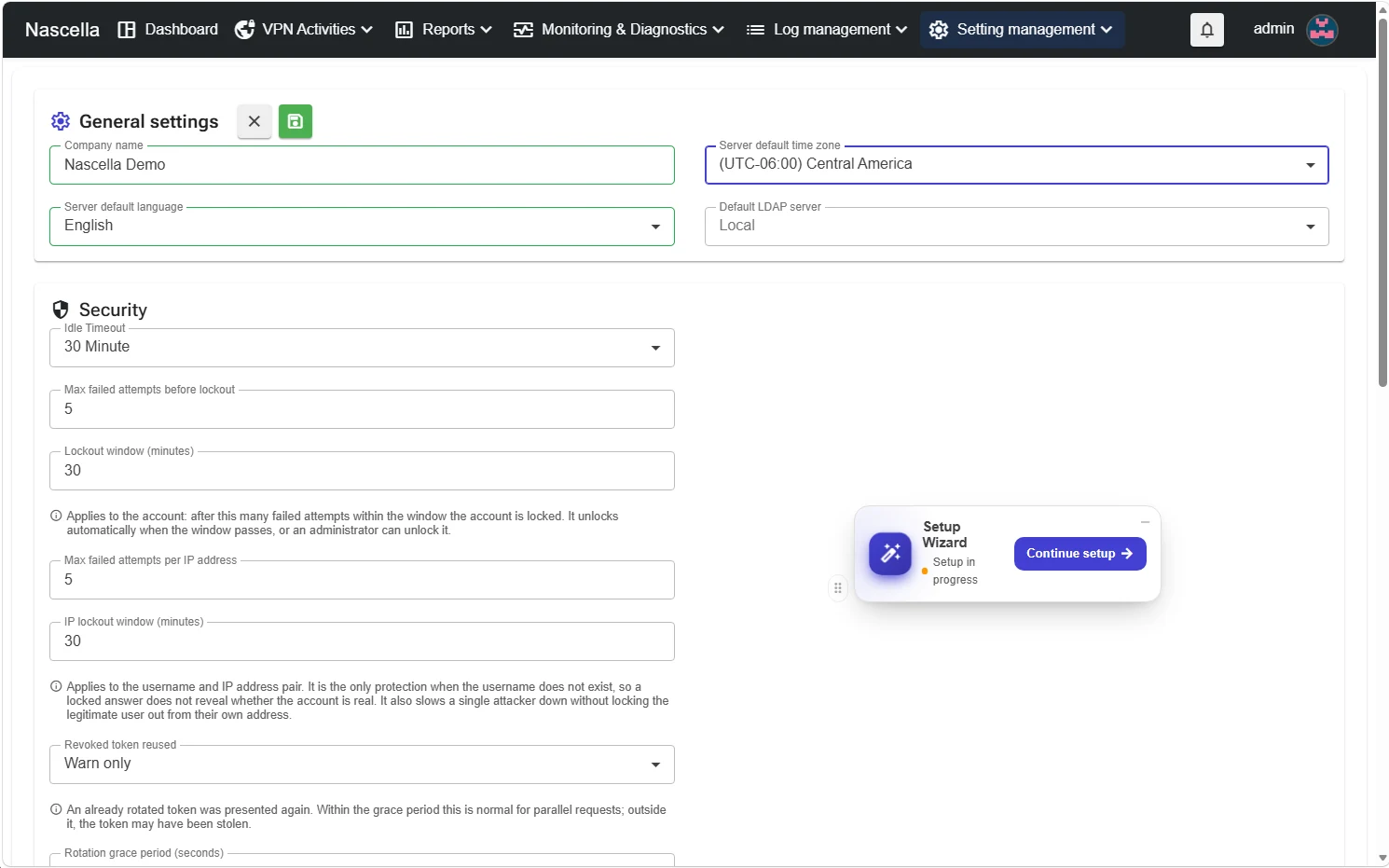
Security
| Setting | Default | Description |
|---|---|---|
| Idle Timeout | 30 minutes | Signs the user out after this much inactivity in the web console. |
| Max failed attempts before lockout / Lockout window (minutes) | 5 / 30 min | Per account: after this many failed attempts within the window the account is locked. It unlocks when the window passes; an administrator can also unlock it. |
| Max failed attempts per IP address / IP lockout window (minutes) | 5 / 30 min | Applies to the user name and IP address pair. Slows down attacks from a single source without locking the legitimate user out from their own address. |
| Revoked token reused | Warn only | A token reused outside the tolerance period may have been stolen. |
| Rotation grace period (seconds) | 10 s | How long the old token keeps working after rotation (0–300 s). |
| Device fingerprint changed | Warn only | The fingerprint is built from the platform and browser family; browser updates do not affect it. |
| IP address changed | Warn only | IP addresses change for ordinary reasons (for example switching between Wi-Fi and mobile data); ending the session is rarely the right choice. |
Options below the list:
| Option | Default | Description |
|---|---|---|
| Password change forced for default password | Off | Prevents use of the default nascella password. We recommend turning it on. |
| Enable two-factor | On | Lets users use 2FA; you can turn it off. |
| Force Two Factor | Off | Makes 2FA mandatory for all users. |
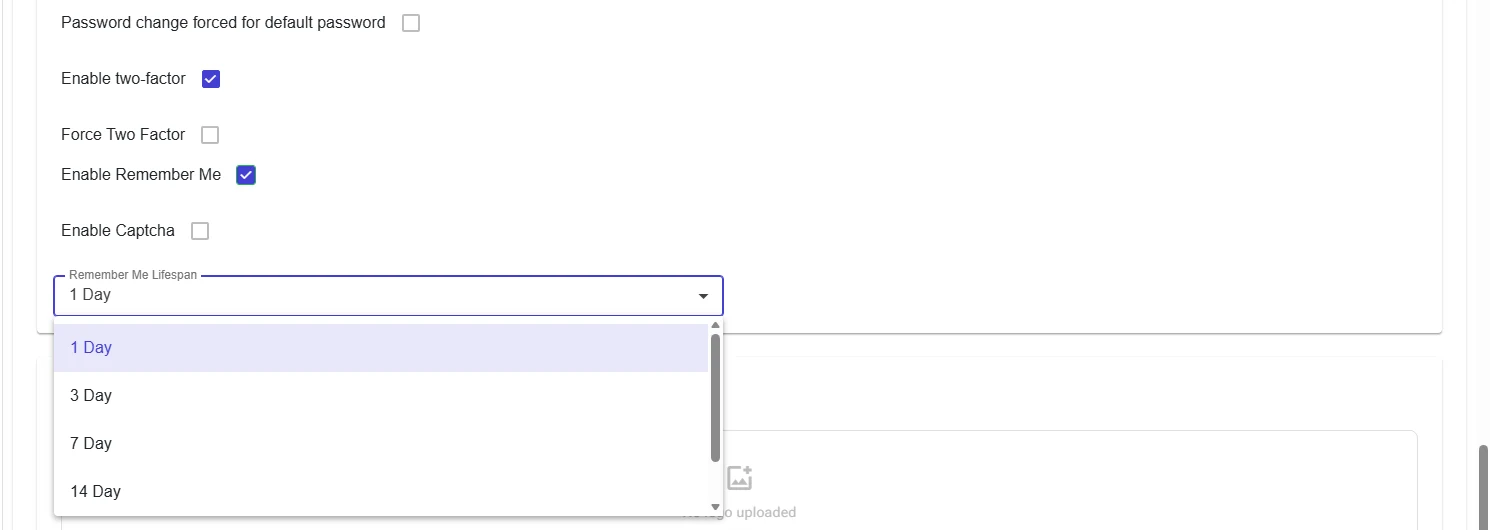
| Enable Remember Me | Off | When on, choose the Remember Me Lifespan (1, 3, 7, 14 days…). Browsers where "remember me" was ticked on the sign-in screen do not need to sign in again during this period. |
| Enable Captcha | Off | Adds extra protection to the sign-in screen. |
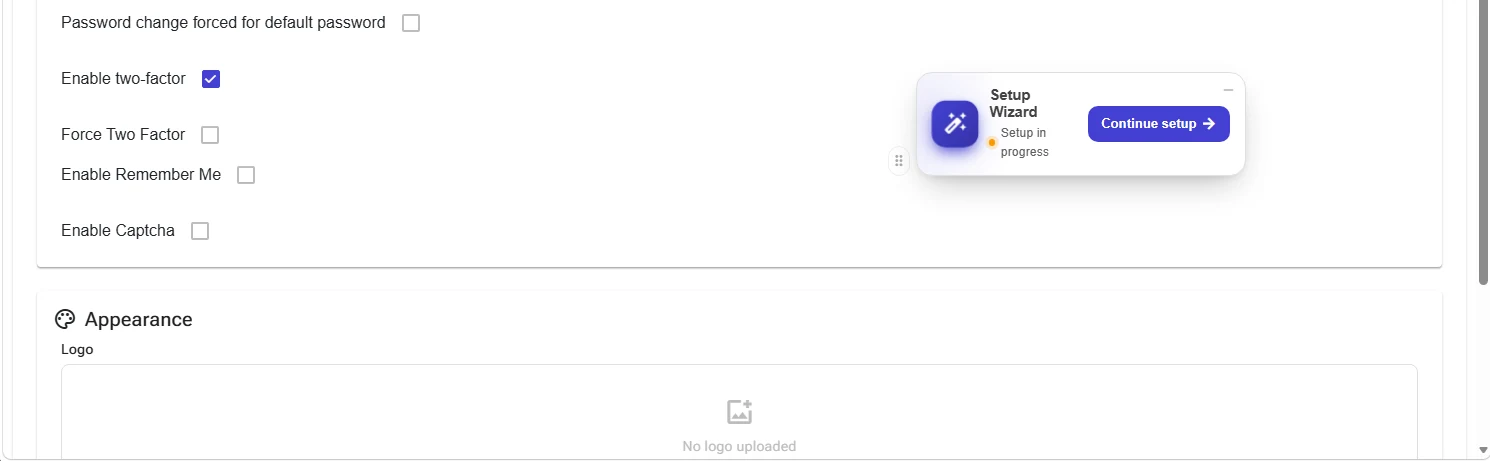
Appearance
Upload your own logo in the Logo area.
Save and next step
When you save, a Server settings updated successfully notification appears and the section title shows the Configured label. Click the pencil button next to the title to edit again.

Click Continue setup to return to the wizard; the Server Settings step shows as Completed.
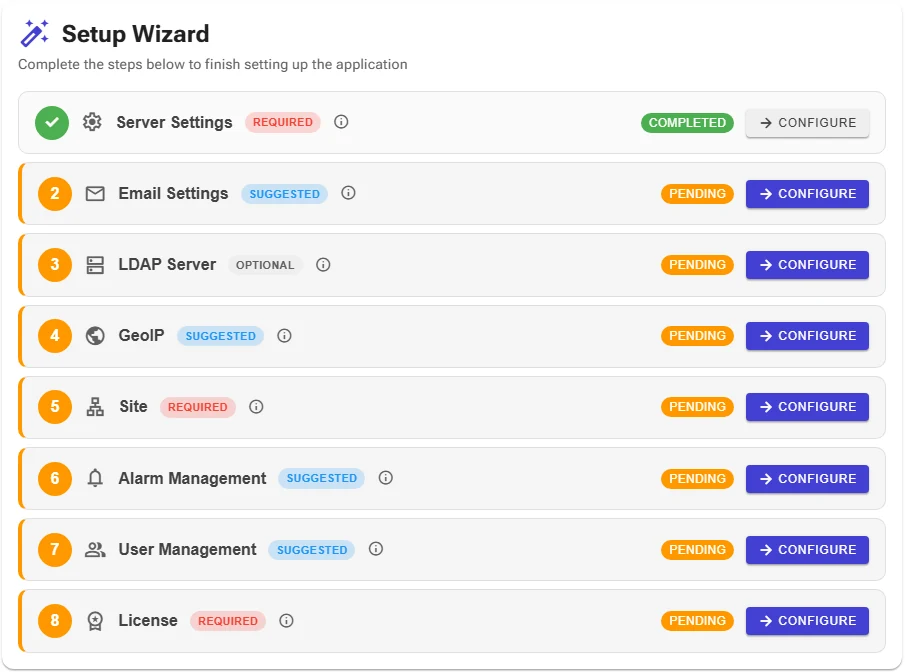
Next step: Email settings.