License and starting the site
This is step 8, the last step of the setup wizard (required). Sites do not collect data until a license is entered. The license screen is in the Setting management menu.
1. Generate a license request
Before a license is installed, opening this screen may show an Error — The requested resource was not found. Details: Active License notification. This only means there is no license yet; you can ignore it.
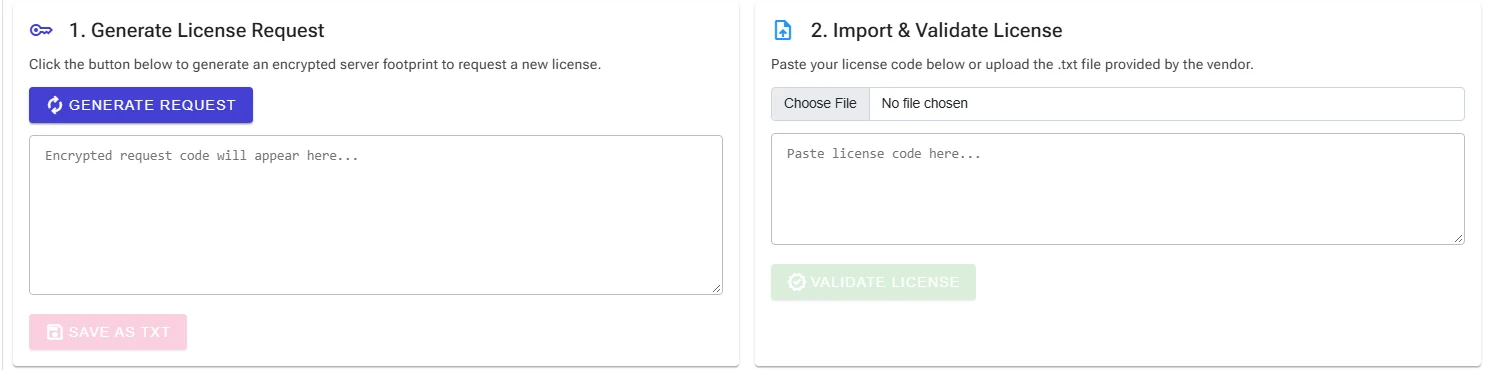
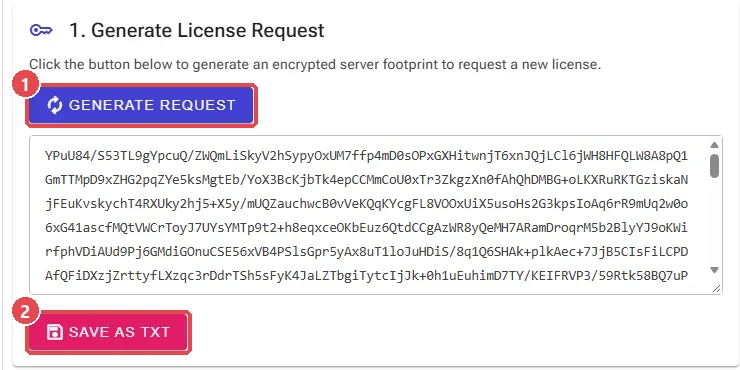
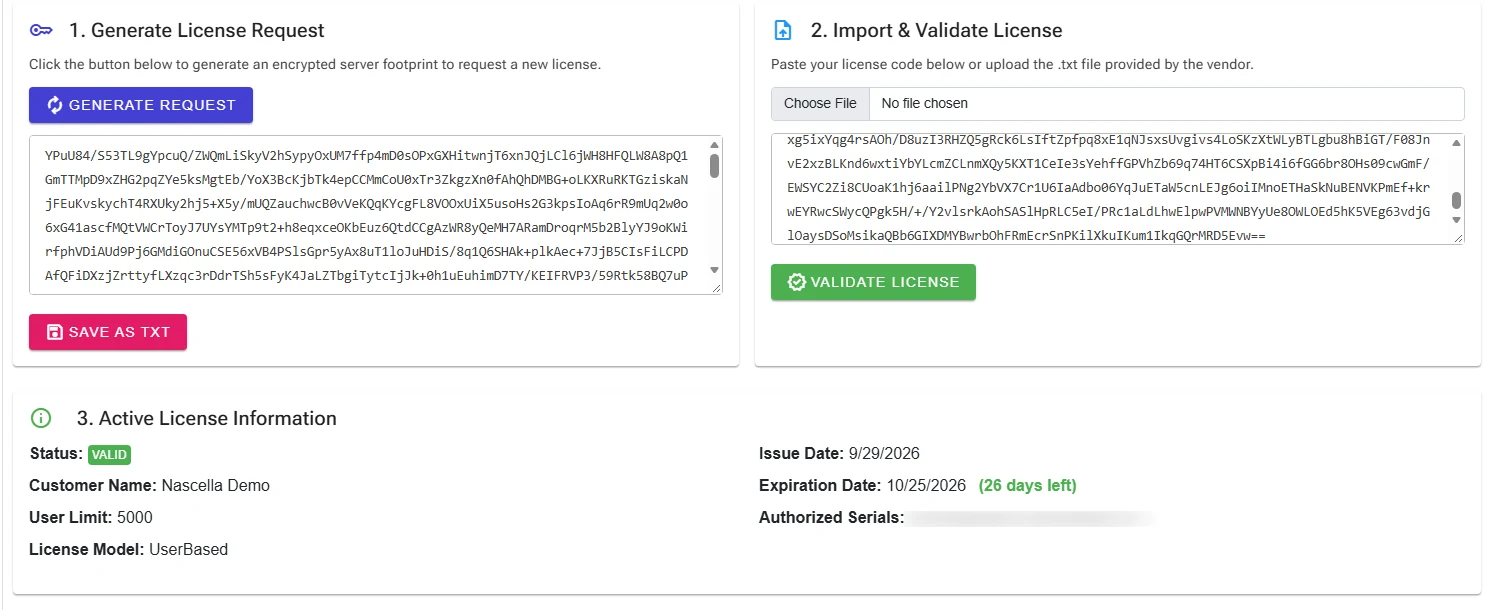
- Under 1. Generate License Request, click Generate Request. An encrypted request code unique to the server is created.
- Save it with Save as TXT or copy it.
- Email the request code or file to [email protected].
2. Import and validate the license
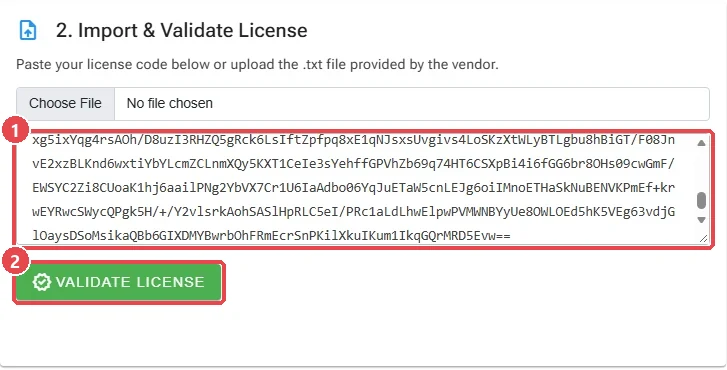
Paste the license code we send you into 2. Import & Validate License, or upload the .txt file, then click Validate License.
3. Check the active license
When the license is validated, a License imported successfully notification appears and the 3. Active License Information section is shown.
| Field | Description |
|---|---|
| Status | Whether the license is valid. |
| Customer Name | The organization the license was issued to. |
| User Limit / License Model | The VPN user limit for user-based licenses. |
| Issue Date / Expiration Date | The validity period and the number of days left. |
| Authorized Serials | Serial numbers of the firewalls the license covers. |
This completes the setup wizard.
Start the site
Because the site was added before the license, it is stopped; start it once after entering the license. You can reach the site status screen in two ways:
- In the notification box at the bottom left, click Site Issues; in the Site Status Warning window, click Go to Worker Management.
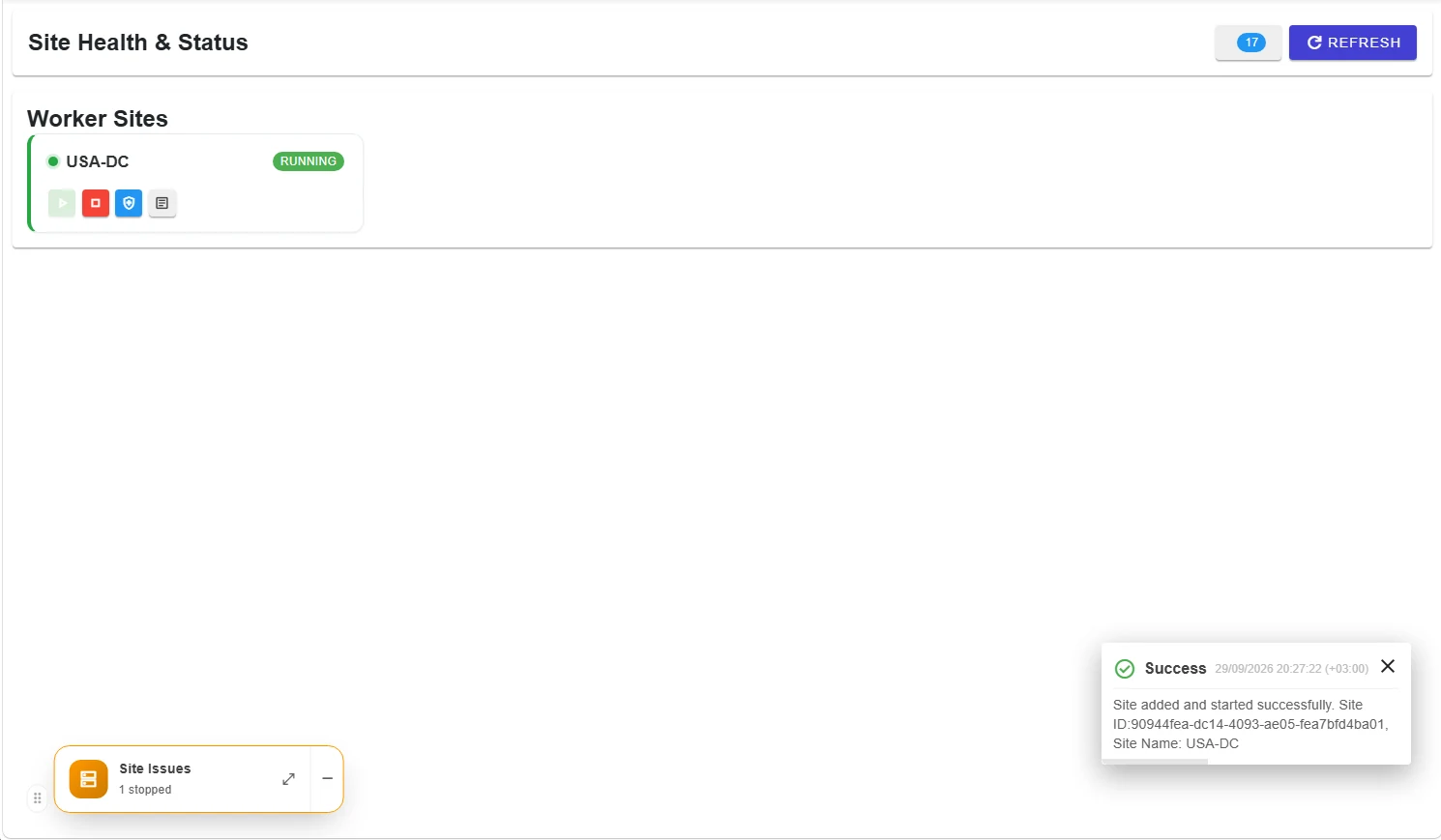
- Or open Monitoring & Diagnostics → Site Health & Status.
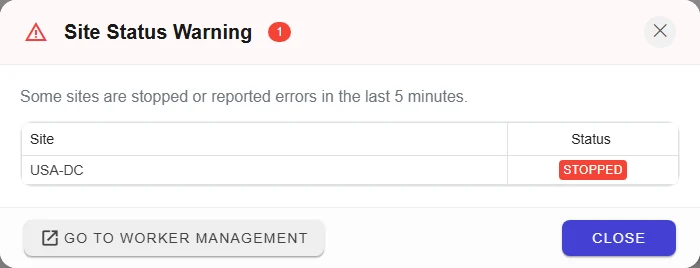
In the Worker Sites list, the site's card shows Stopped. Click the green ▶ (start) button.

The site starts, the card shows Running and a notification confirms that the site was added and started. The red ■ button stops the site.
Collector health
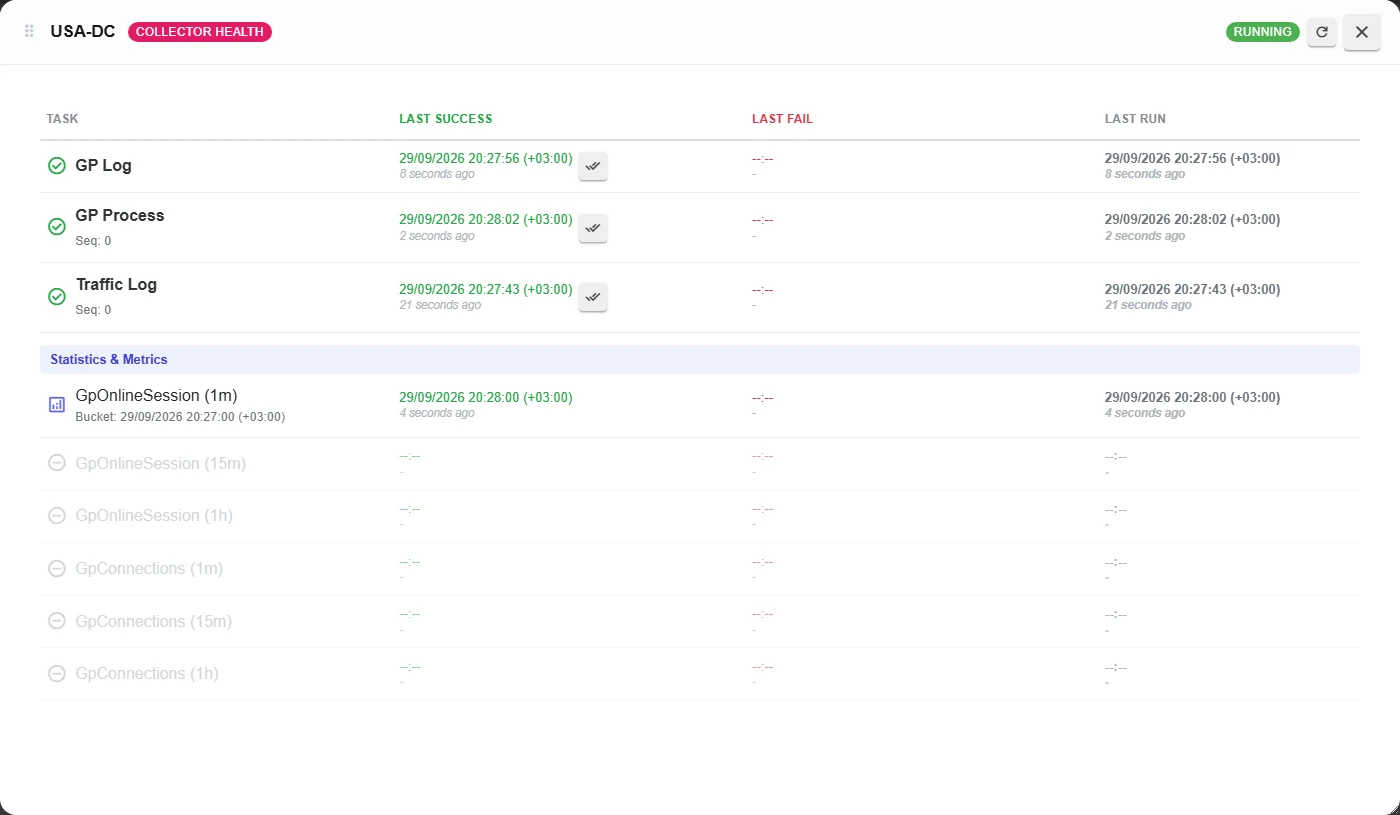
Click the blue shield button on the card to open the site's Collector Health window. For each task it shows the last success, the last failure and the last run time.
| Task | What it does |
|---|---|
| GP Log | Reads GlobalProtect logs. |
| GP Process | Processes the logs into VPN connections. |
| Traffic Log | Collects the traffic logs of closed sessions. |
| Statistics & Metrics | Builds 1-minute, 15-minute and hourly statistics; the 15-minute and hourly ones run once their first period has passed. |
If the Last Fail column is empty and the tasks are green, the site is healthy.