LDAP server
This is step 3 of the setup wizard (optional). It is needed for signing in to the web console with Active Directory accounts and for reporting by Active Directory group. Later you can open it from the Setting management menu.
The minimum you need
In most environments these fields are enough; the other fields come with ready values for Active Directory.
| Field | Example |
|---|---|
| Alias | Nascella AD — the name shown in lists |
| Primary server | 192.168.139.2 or the domain controller's name |
| LDAP base DN | dc=nascella,dc=local |
| Port | 389 |
| Username / Password | An LDAP account that can search the directory |
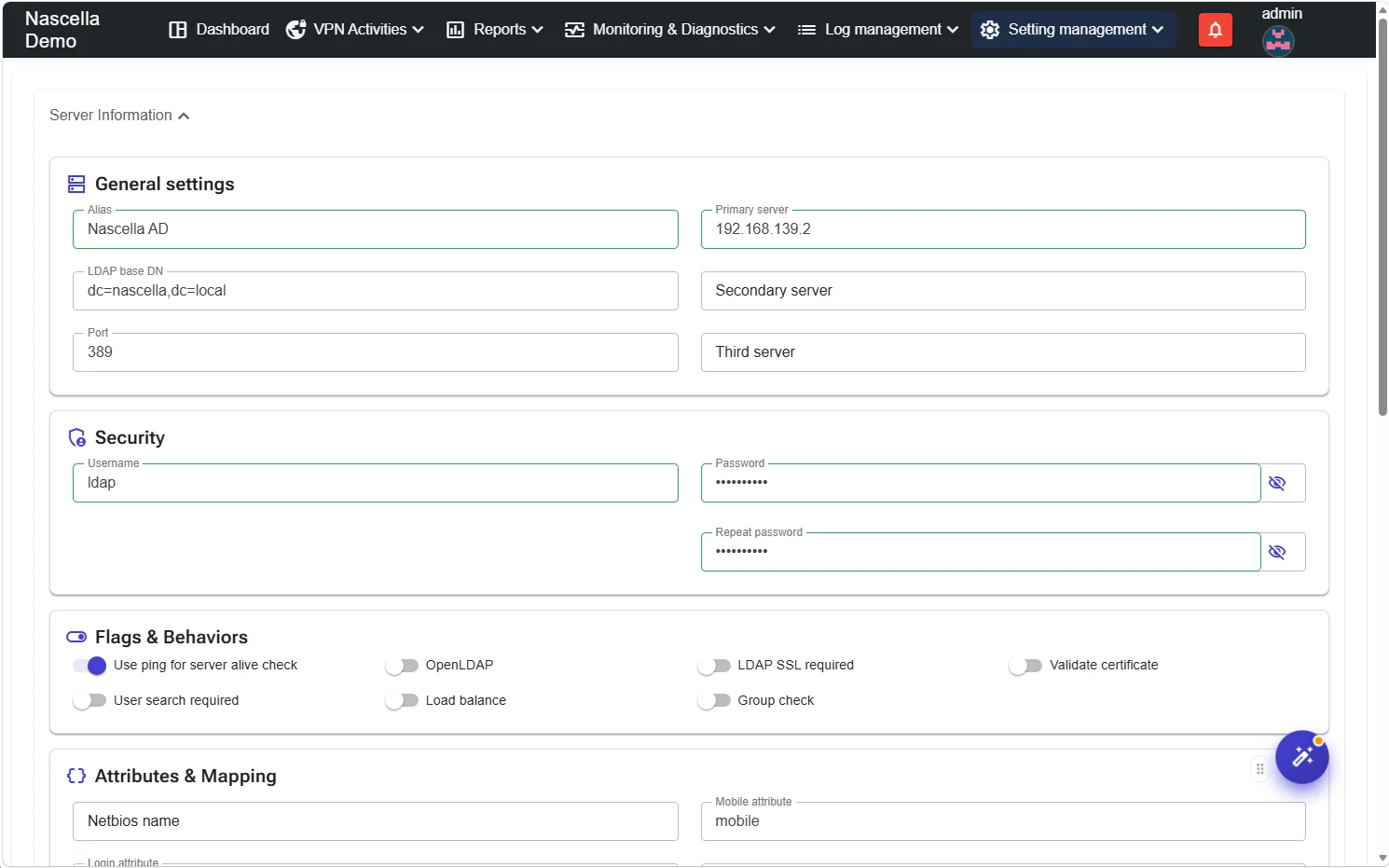
Add more domain controllers in Secondary server and Third server.
Flags and behaviors
| Option | Default | Description |
|---|---|---|
| Use ping for server alive check | On | Pings the server before connecting. |
| OpenLDAP | Off | Turn on if the directory is OpenLDAP rather than Active Directory. |
| LDAP SSL required | Off | Uses an encrypted connection (LDAPS). |
| Validate certificate | Off | Validates the server certificate over LDAPS. |
| User search required | Off | At sign-in the user is first looked up with the LDAP account above to find their DN, then verified with that DN. When off, the user is verified directly with the name they typed. |
| Load balance | Off | Spreads requests across the defined servers. |
| Group check | Off | At sign-in, checks the user's group membership against Allowed groups. |
Turn on LDAP SSL required and change the port accordingly (usually 636 for LDAPS). If certificate validation is
on and the server certificate is issued by your corporate certificate authority, you may need to upload that
authority's certificate under Trusted Certificates.
Attributes and mapping
These come ready for Active Directory; change them only if your directory is structured differently.
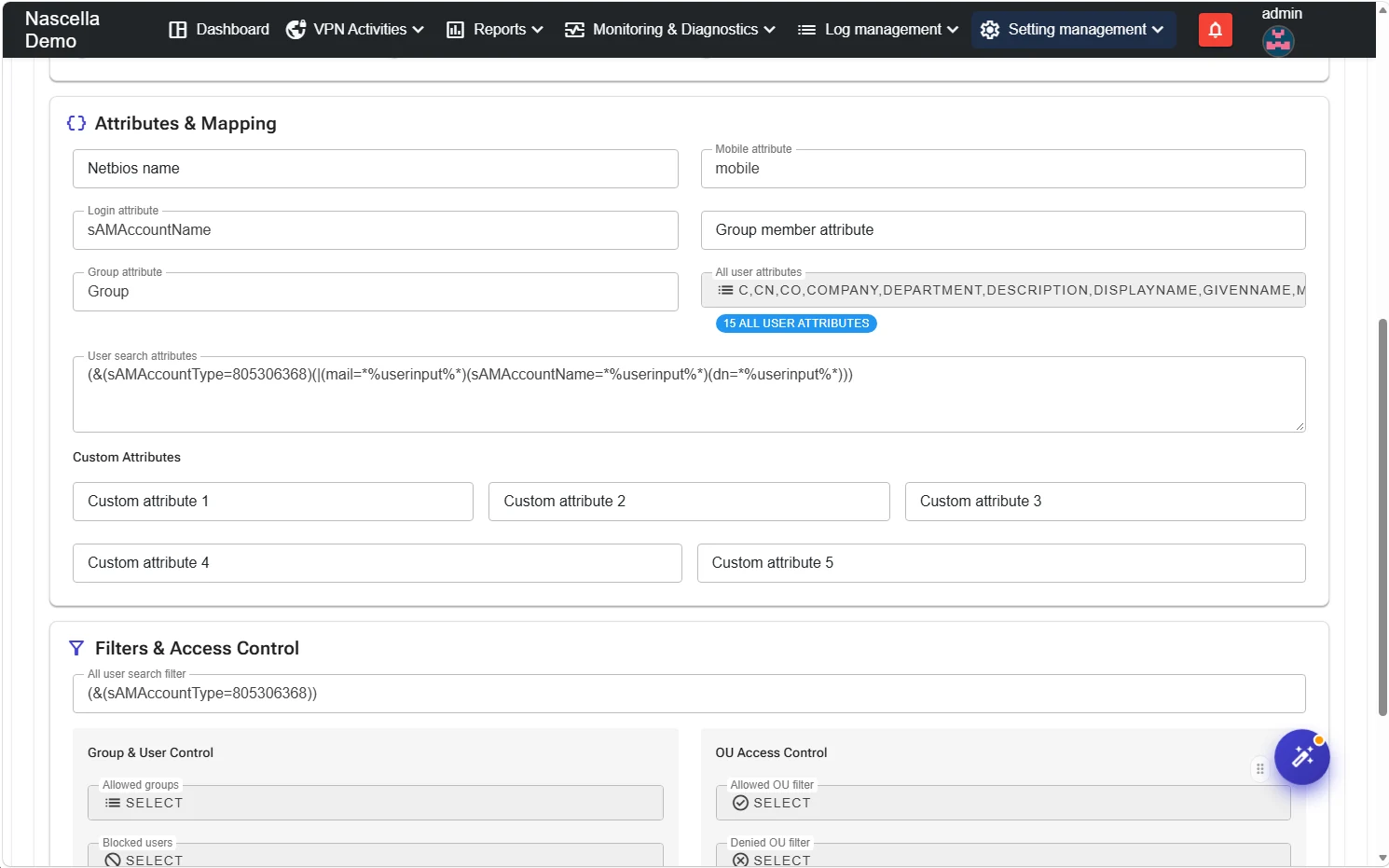
| Field | Default |
|---|---|
| Netbios name | The short domain name, for example nascella |
| Login attribute | sAMAccountName |
| Mobile attribute | mobile |
| Group attribute | Group |
| All user attributes | Attributes read for each user (C, CN, COMPANY, DEPARTMENT, DISPLAYNAME…) |
| User search attributes | (&(sAMAccountType=805306368)(|(mail=*%userinput%*)(sAMAccountName=*%userinput%*)(dn=*%userinput%*))) |
| Custom attribute 1–5 | Extra attributes you want to read |
Filters and access control
| Field | Description |
|---|---|
| All user search filter | Default (&(sAMAccountType=805306368)) — user accounts only. |
| Allowed groups / Blocked users | Limit to specific groups or leave specific users out. |
| Allowed OU filter | Reads objects and users only from the OUs you select. |
| Denied OU filter | Leaves out the OUs you select and looks at the rest. |
Test and save
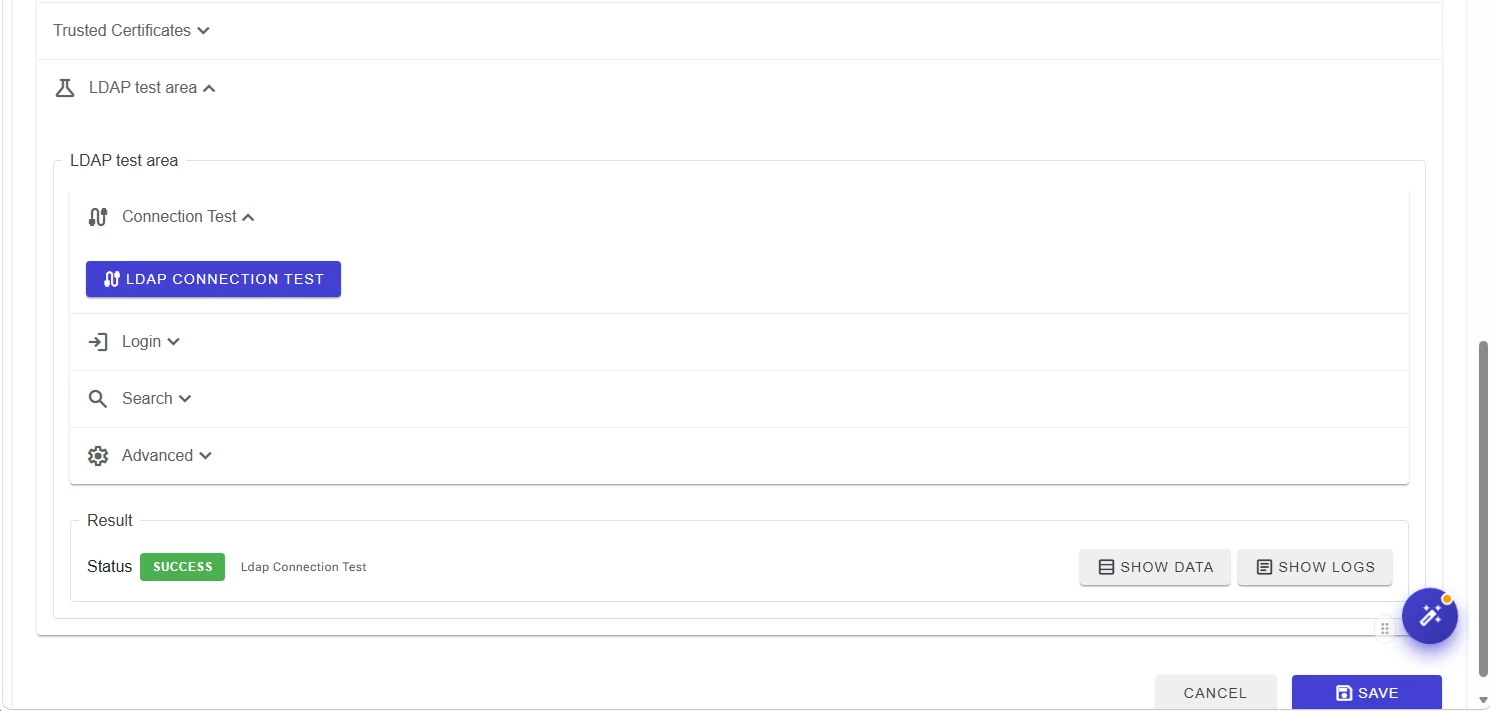
After filling in the fields, verify them in the LDAP test area at the bottom before saving.
- Under Connection Test, click Ldap Connection Test.
- Result should show Status: Success. Show data opens the returned data, Show Logs the detailed logs.
- You can also use the Login and Search sections to check that a user can sign in and be found.
- Click Save.
The test uses the values currently on the screen, even if they are not saved yet; try a change first, then save it.
Next step
Click Continue setup to return to the wizard; the LDAP Server step shows as Completed.
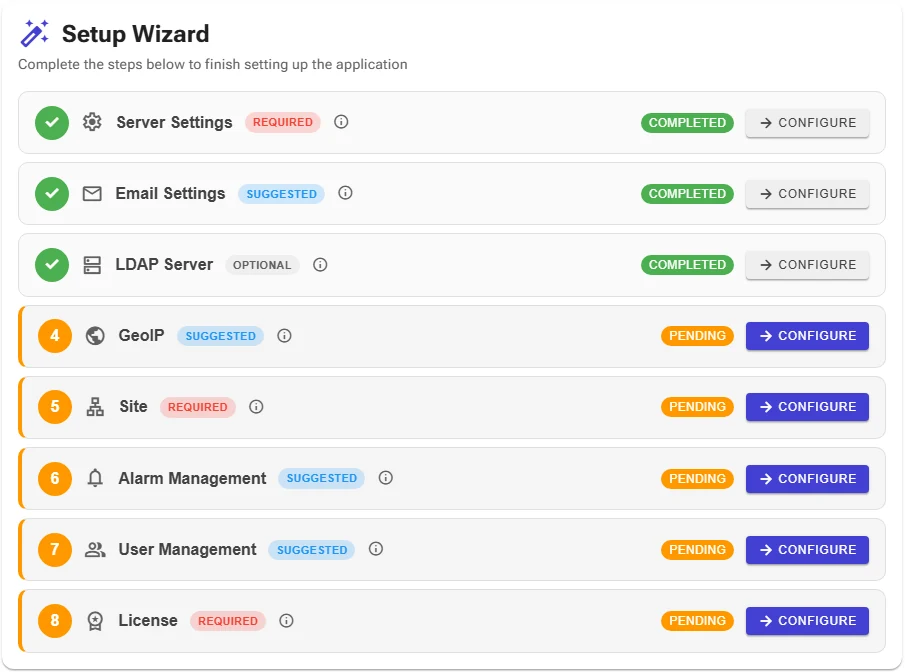
Next step: GeoIP.