GeoIP
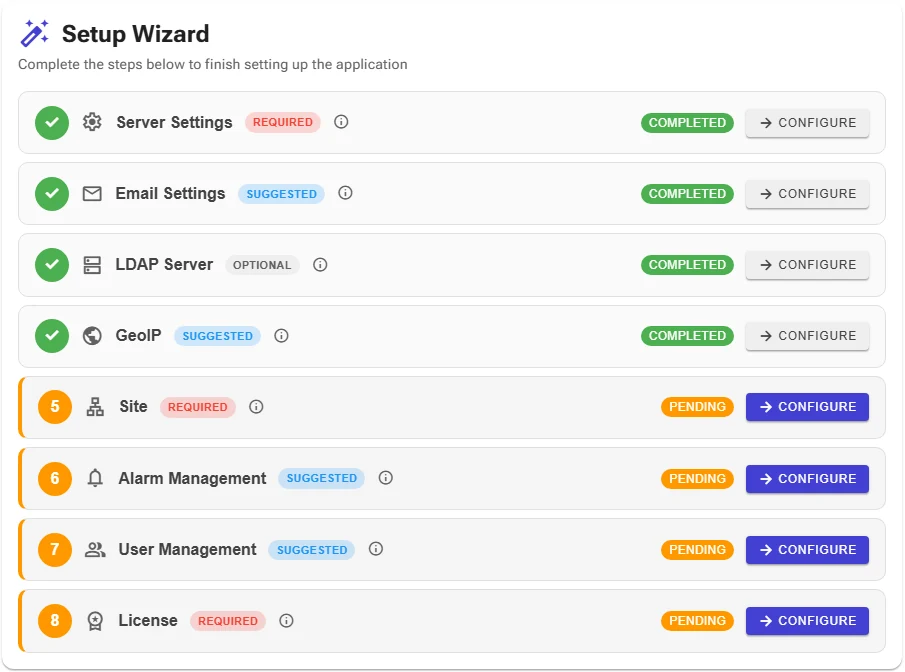
This is step 4 of the setup wizard (suggested). GeoIP looks up the country, region, city, internet service provider (ISP), coordinates and connection type of the public IP addresses used for VPN connections. This information:
- appears in VPN activities and reports,
- is used in notification rules such as "a connection from a country that has never connected before".
GeoIP is optional; without it these fields stay empty. Later you can open it from the Setting management menu.
Choose a provider
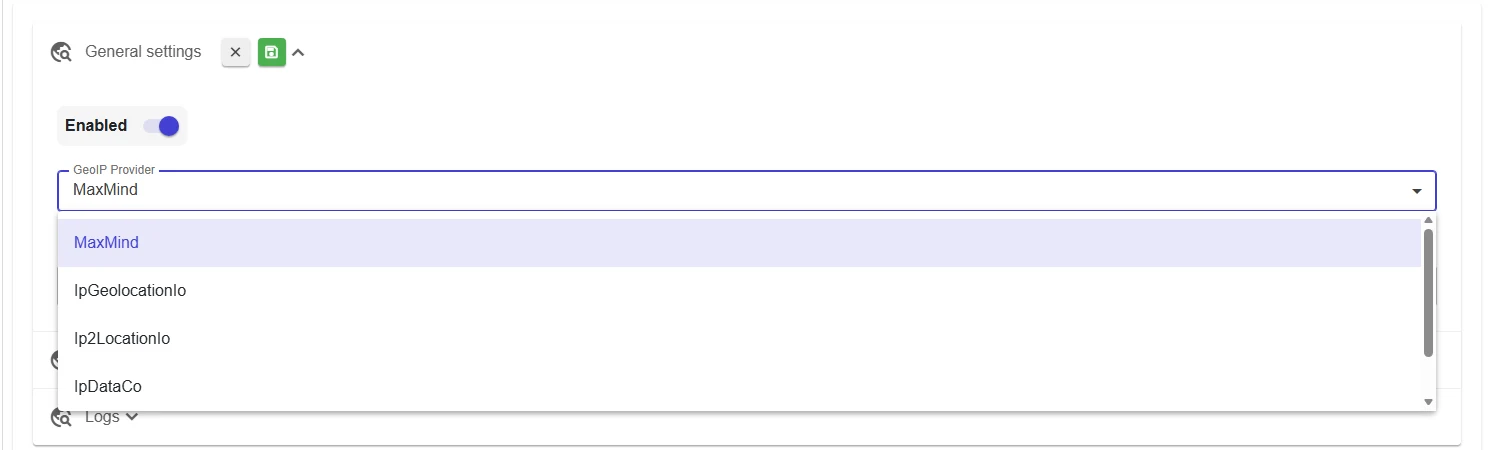
Turn on Enabled and select the provider you have an account with in the GeoIP Provider list.
| Provider | Required information |
|---|---|
| MaxMind | Account ID, License Key |
| IpGeolocationIo | Api key |
| Ip2LocationIo | Api key |
| IpDataCo | Api key |
| IpLocationNet | None |
Get the account details from the provider's website. Query quota and the level of detail depend on the provider and your plan.
Test and save
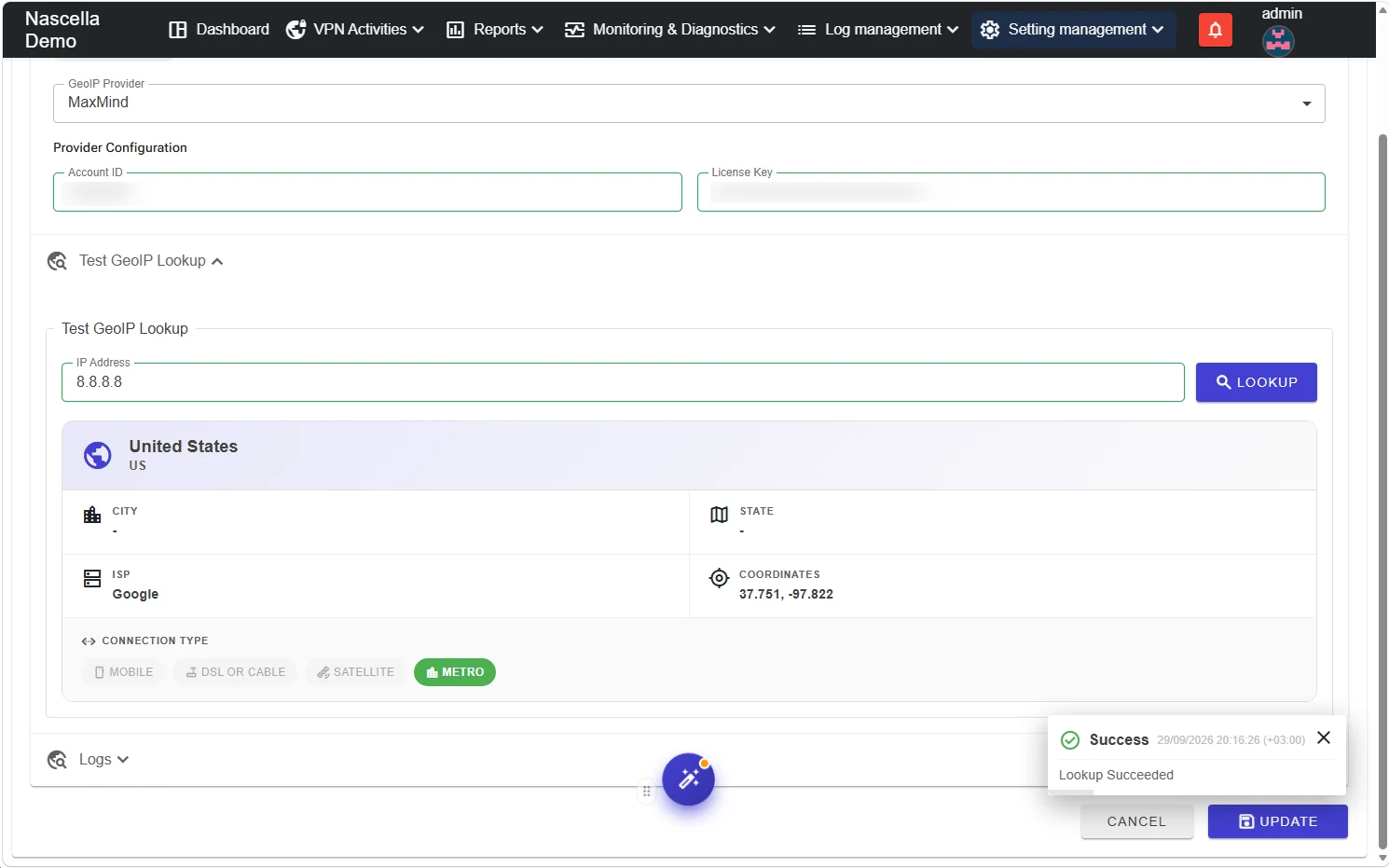
- Fill in the Provider Configuration fields.
- Under Test GeoIP Lookup, enter an IP address (for example
8.8.8.8) and click Lookup. Country, city, state, ISP, coordinates and connection type are shown. - If the result is correct, click Update.
The test uses the values currently on the screen, even if they are not saved yet; try a change first, then save it.
If the lookup fails, see the details in the Logs section.
Only public IP addresses are looked up. Internal addresses (private, loopback, CGNAT) and reserved addresses are never sent to the provider and do not use quota. Take into account in your GDPR assessment that public IP addresses are sent to a provider that may be located abroad.
Location details for IP addresses saved before GeoIP was configured can be filled in later with GeoIP Scan in the Configurator.
Next step
Click Continue setup to return to the wizard; the GeoIP step shows as Completed.
Next step: Sites.