Alarm management
This is step 6 of the setup wizard (suggested). Alarms report error, VPN and information events by email. By default emails go to the Default recipient addresses you entered in Email settings.
Create the default alarms
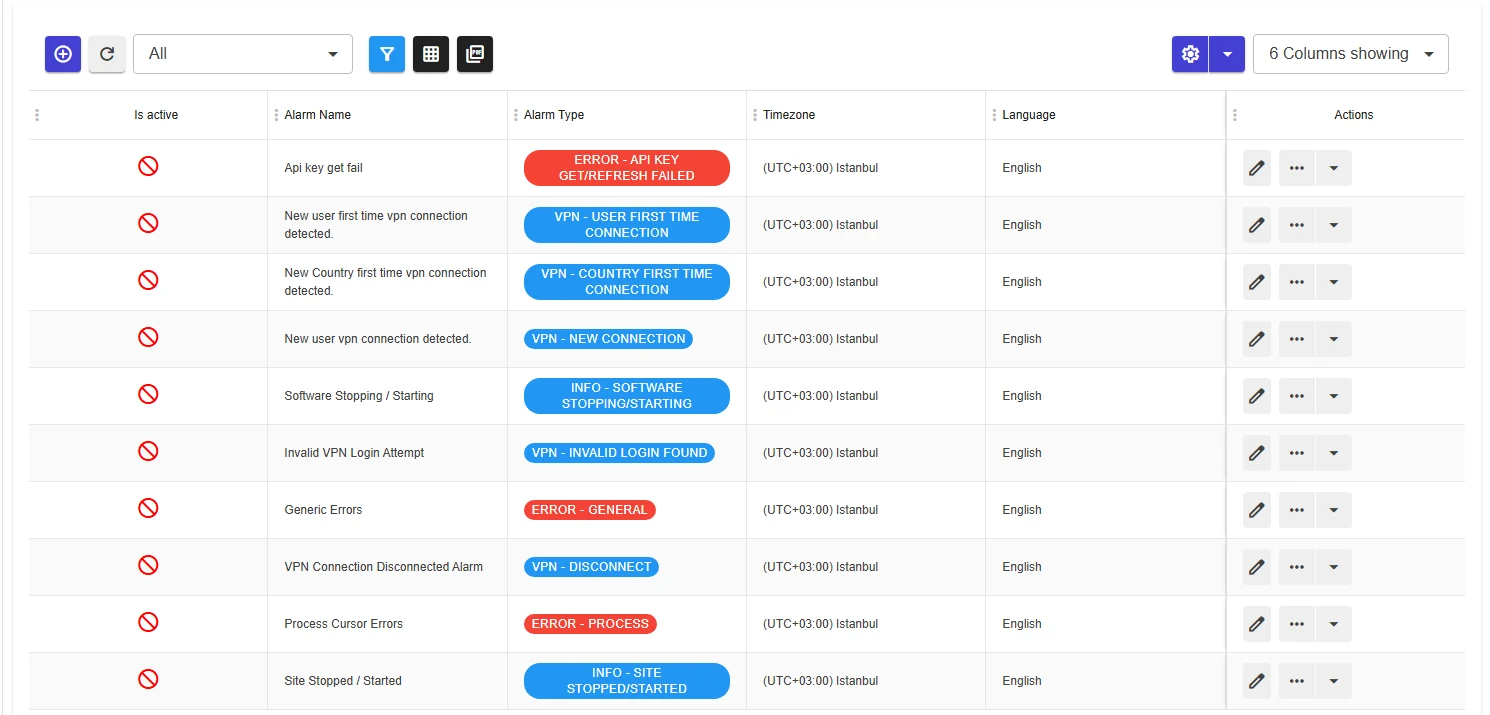
If there are no alarms yet, the No Alarm Found window opens. Click Quick Create.

One alarm of each type is created for all sites and inactive (10 alarms). Click Ok.

| Alarm name | Alarm type |
|---|---|
| Api key get fail | Error - API Key Get/Refresh Failed |
| Process Cursor Errors | Error - Process |
| Generic Errors | Error - General |
| Invalid VPN Login Attempt | VPN - Invalid Login Found |
| New user first time vpn connection detected. | VPN - User First Time Connection |
| New Country first time vpn connection detected. | VPN - Country First Time Connection |
| New user vpn connection detected. | VPN - New Connection |
| Site Stopped / Started | Info - Site Stopped/Started |
| VPN Connection Disconnected Alarm | VPN - Disconnect |
| Software Stopping / Starting | Info - Software Stopping/Starting |
Activate alarms
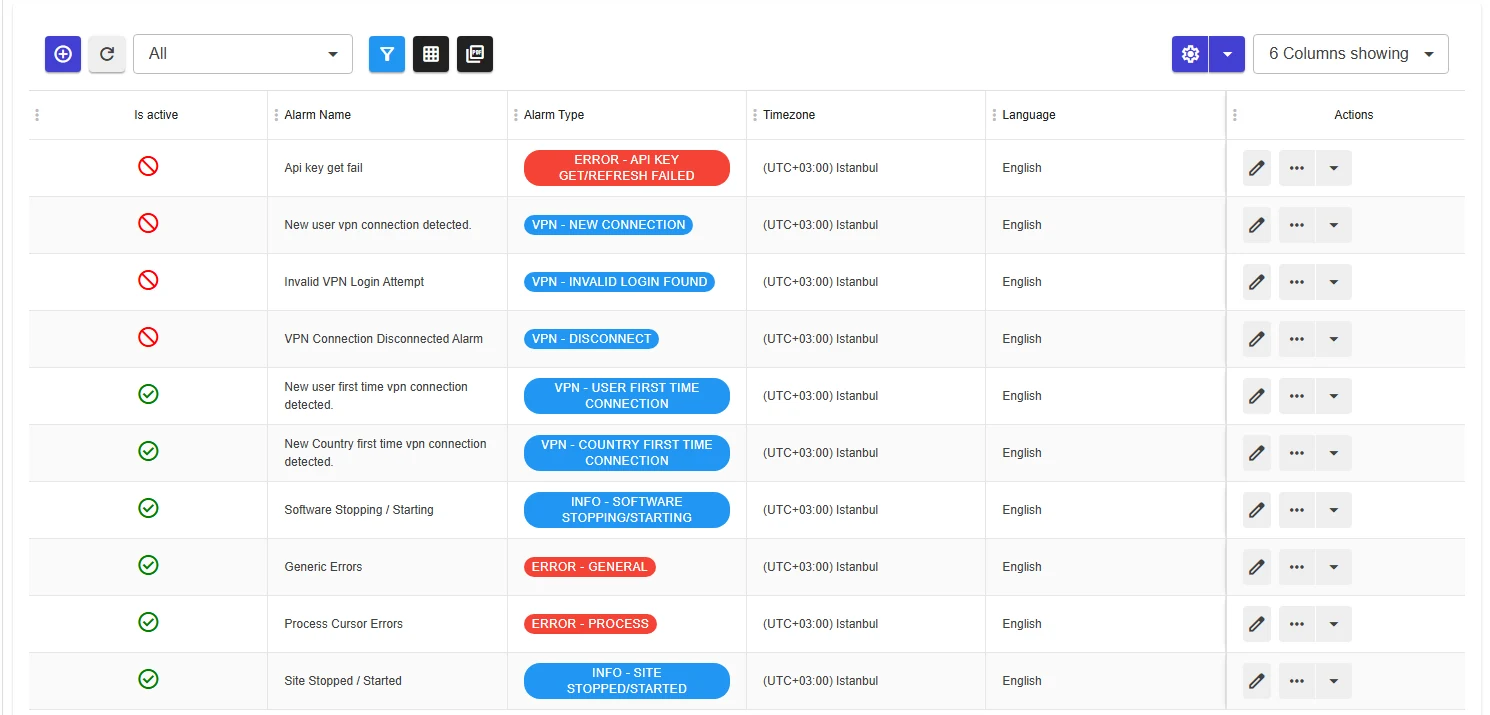
The alarms come ready; you only need to activate the ones you want.
-
Click the ⋯ button on the alarm's row and choose Activate.

-
Answer Yes to Are you sure you want to change activation?

Active alarms show a green check mark in the Is active column. For example, you can activate the error alarms and VPN - Country First Time Connection.
To change an alarm's recipients, subject or text, click the pencil button on its row. Each alarm can have its own recipients (people or groups), language and time zone; the subject and body can use variables such as user, public IP, country and device. Repeated emails for the same event are limited by a throttle period.
For the on-screen notification boxes and how to clear them, see Notifications.
Next step
Click Continue setup to return to the wizard; the Alarm Management step shows as Completed.
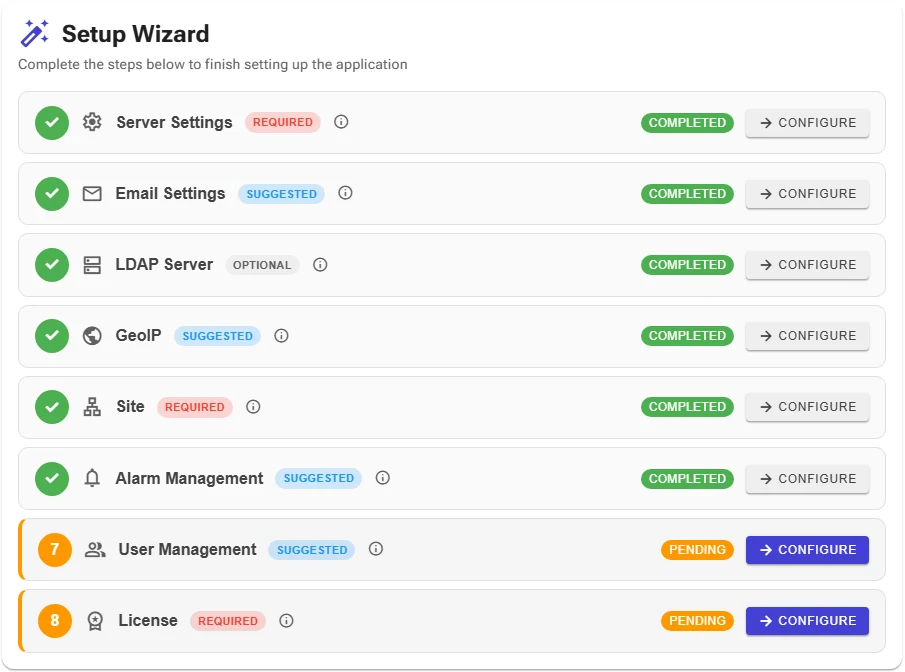
Next step: User management.